What you'll need
A template folder must be empty before it can be removed.
Remove a template folder
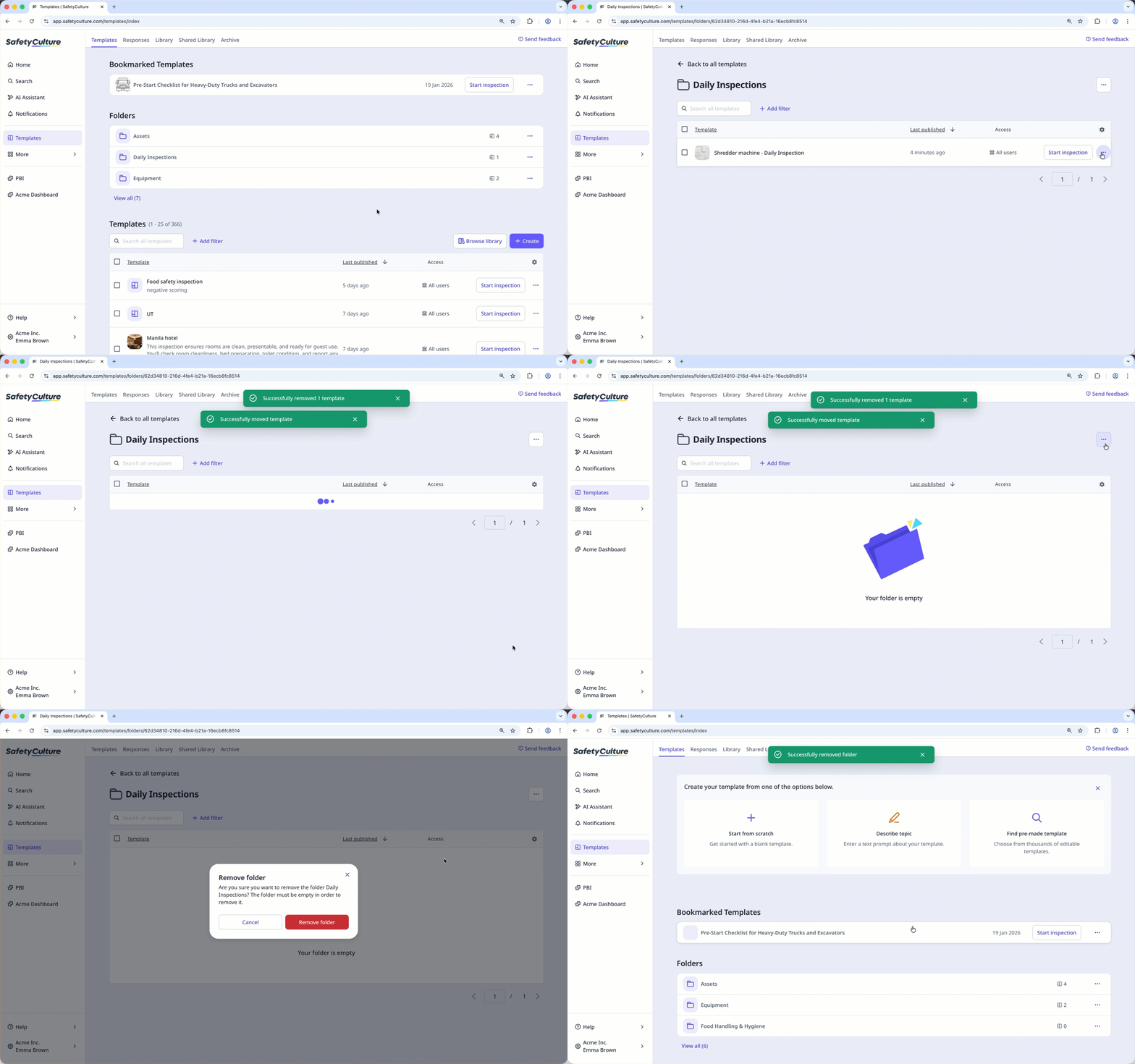
Select Templates in the sidebar or select it in More.
Click the template folder you want to remove.
Make sure the template folder is empty. If there are templates in the folder, click on each template's right-hand side and select
 Remove from folder.
Click on the upper-right of the page and select Remove folder.
In the pop-up window, select Remove folder.
Rename a template folder
Select Templates in the sidebar or select it in More.
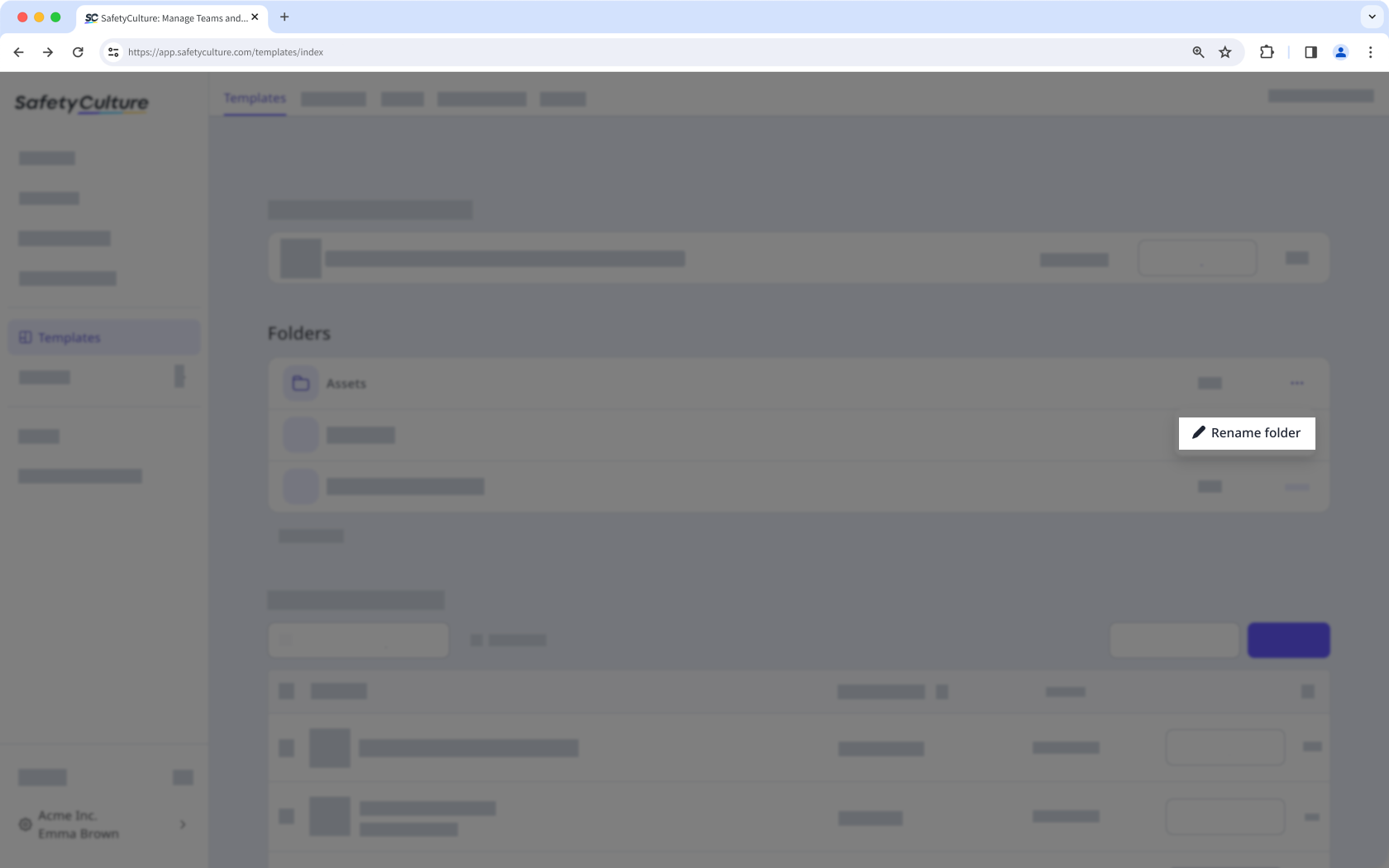
Click on the right-hand side of the folder you want to rename and select Rename folder.
In the pop-up window, rename the folder and select Rename folder.
You can create a folder when moving templates to folders.