
- Using SafetyCulture
- Issues
- Download issue reports as PDF
Download issue reports as PDF
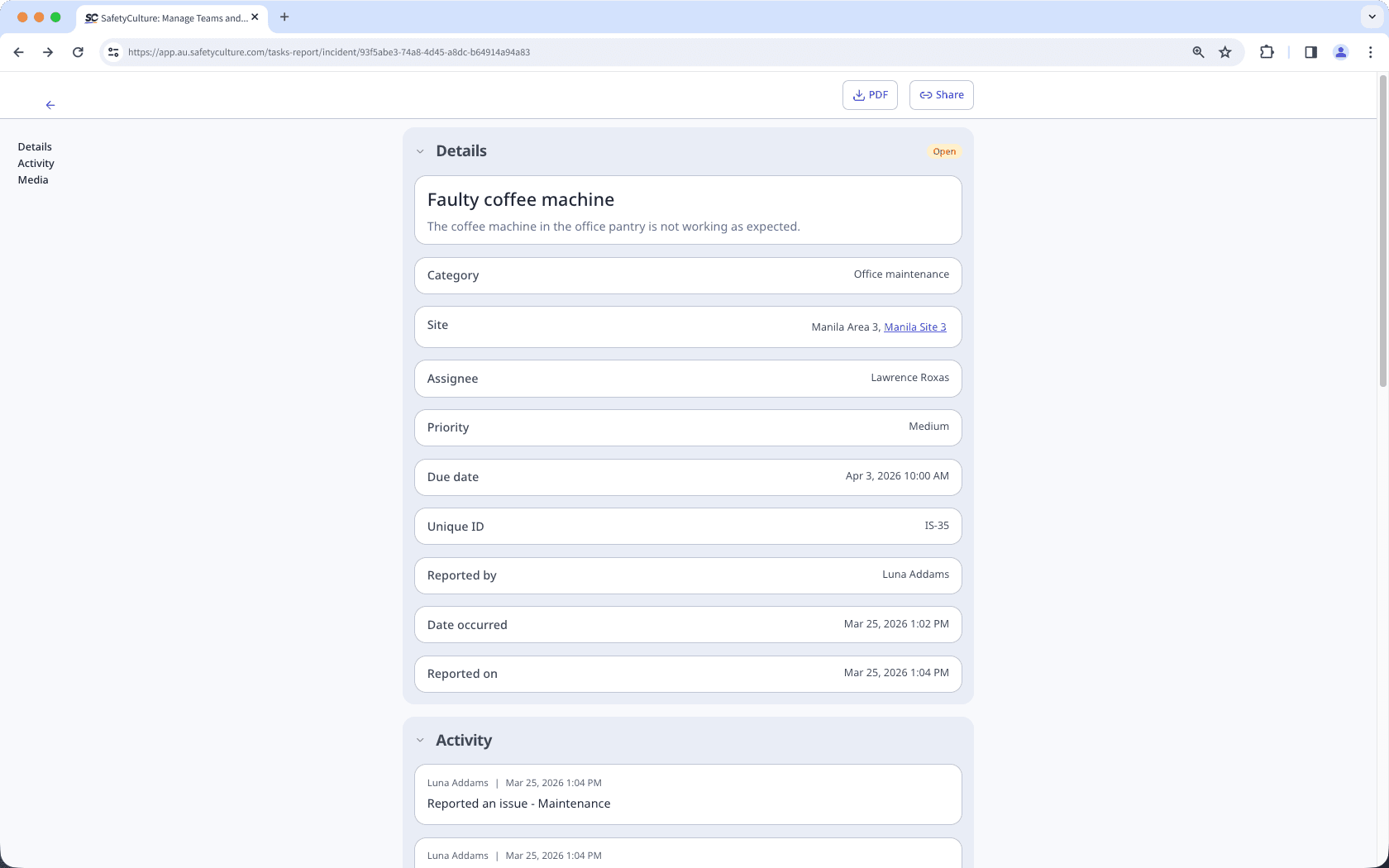
Learn how to download issue reports as PDF via the web app and the mobile app to share accurate information about a reported incident to your team and stakeholders.What are issue reports?
Issue reports are detailed summaries that document all relevant information and the full activity timeline for each reported issue. These reports help teams and stakeholders stay informed, maintain accurate records, and ensure visibility across the organization.
You can share issue reports by generating public links for real-time access or download them as PDF files for record-keeping. This promotes transparency and ensures teams can collaborate efficiently to track and resolve workplace issues.
What you'll need
Download an issue report as PDF
Select
 Issues in the sidebar or select it in
  More.
More.Select the issue.
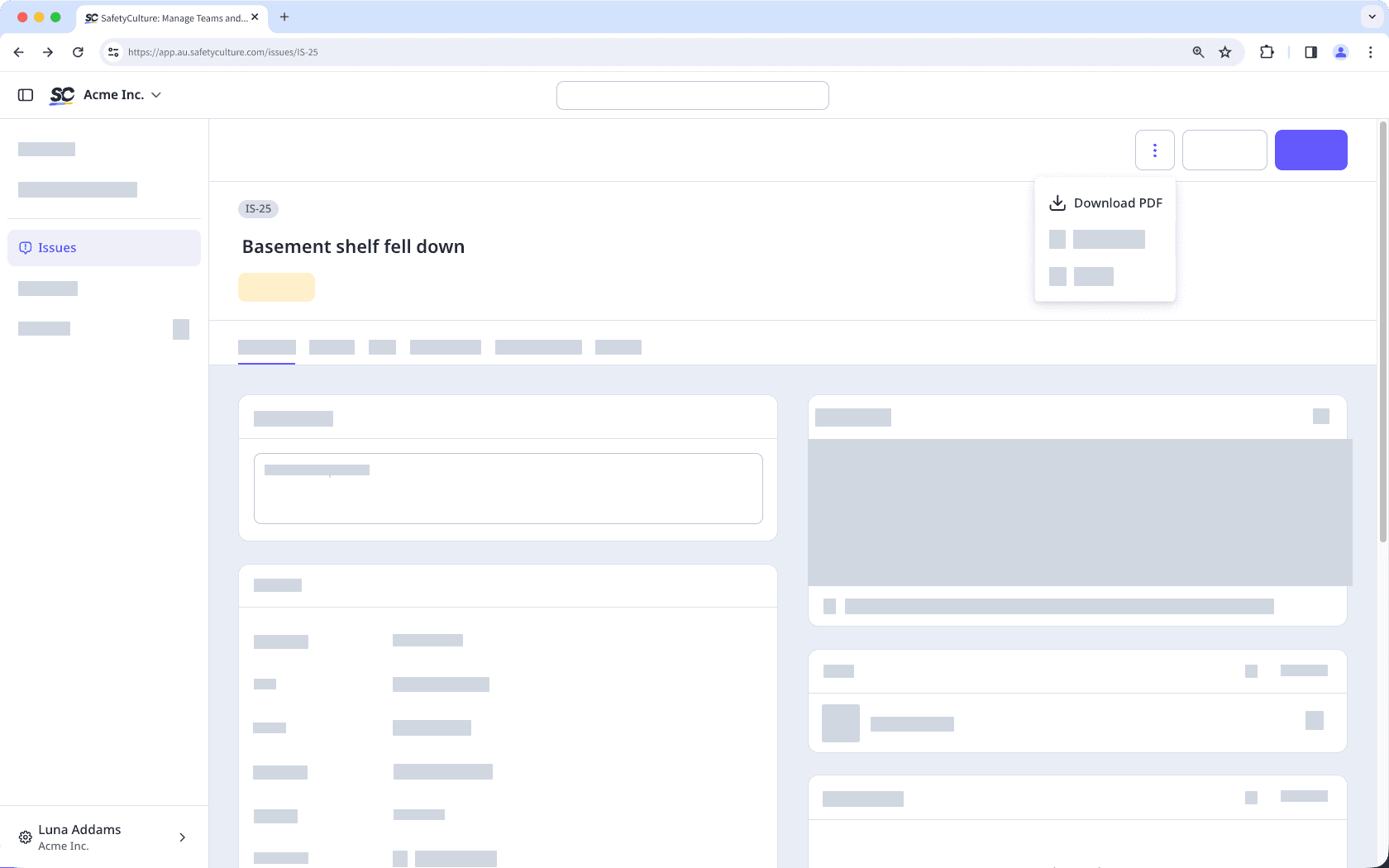
In the issue profile, click
 on the upper-right corner.
Click
 Download PDF.
Open the mobile app.
Tap
Issues in the navigation bar or select it from More.Tap the issue.
In the issue profile, tap
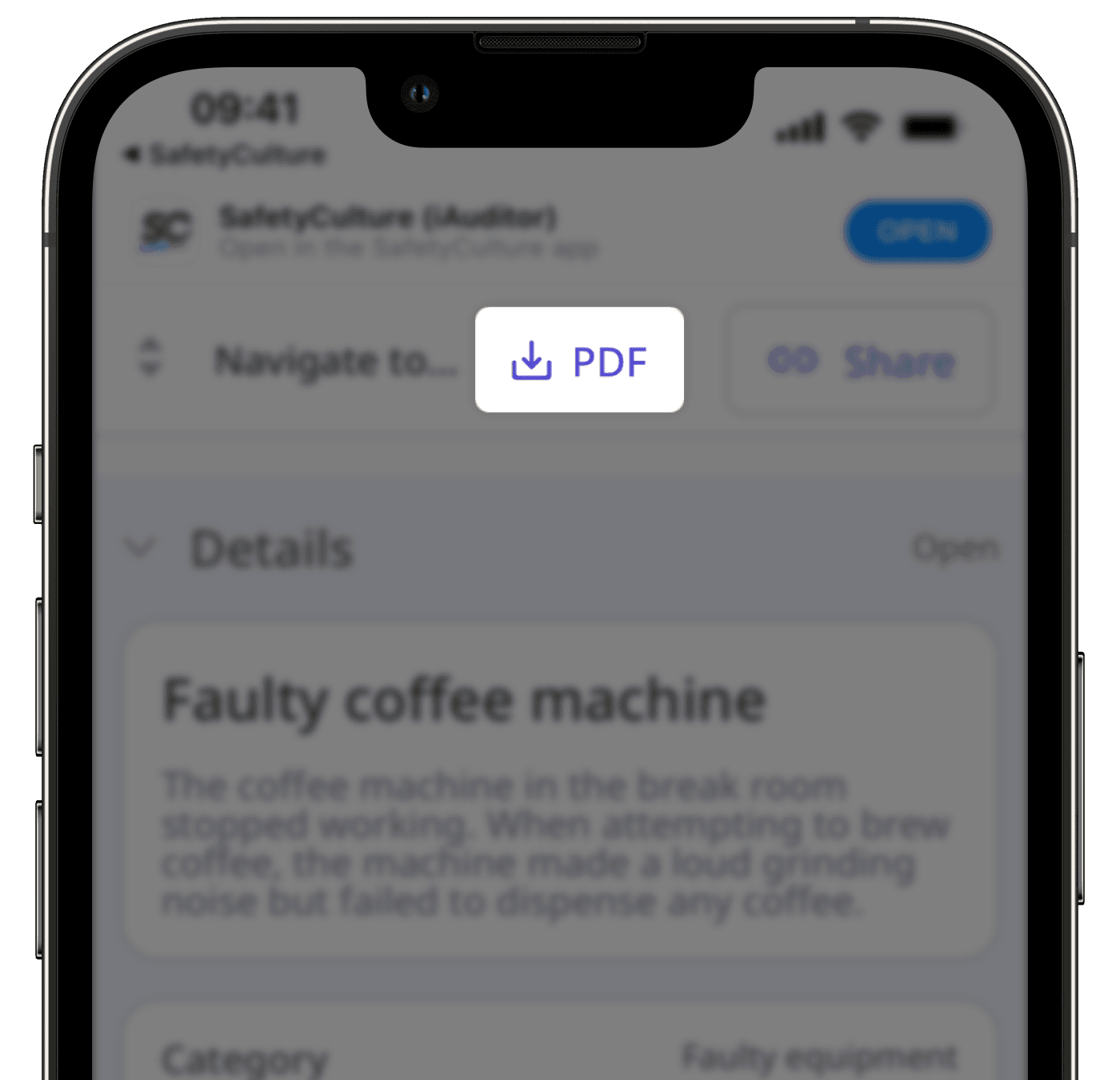
 on the upper-right corner of your screen and select View report.
Tap
PDF.
Was this page helpful?
Thank you for letting us know.