
Why request a full seat?
Requesting a full seat helps your management team understand when you need full SafetyCulture functionality. As a user in a guest seat or lite seat, you can only use SafetyCulture's features to a limited degree. Upgrading to a full seat means you can unlock access to even more SafetyCulture features than before, allowing you to raise your team's workplace operations standards without limitations.
Request a full seat for your account
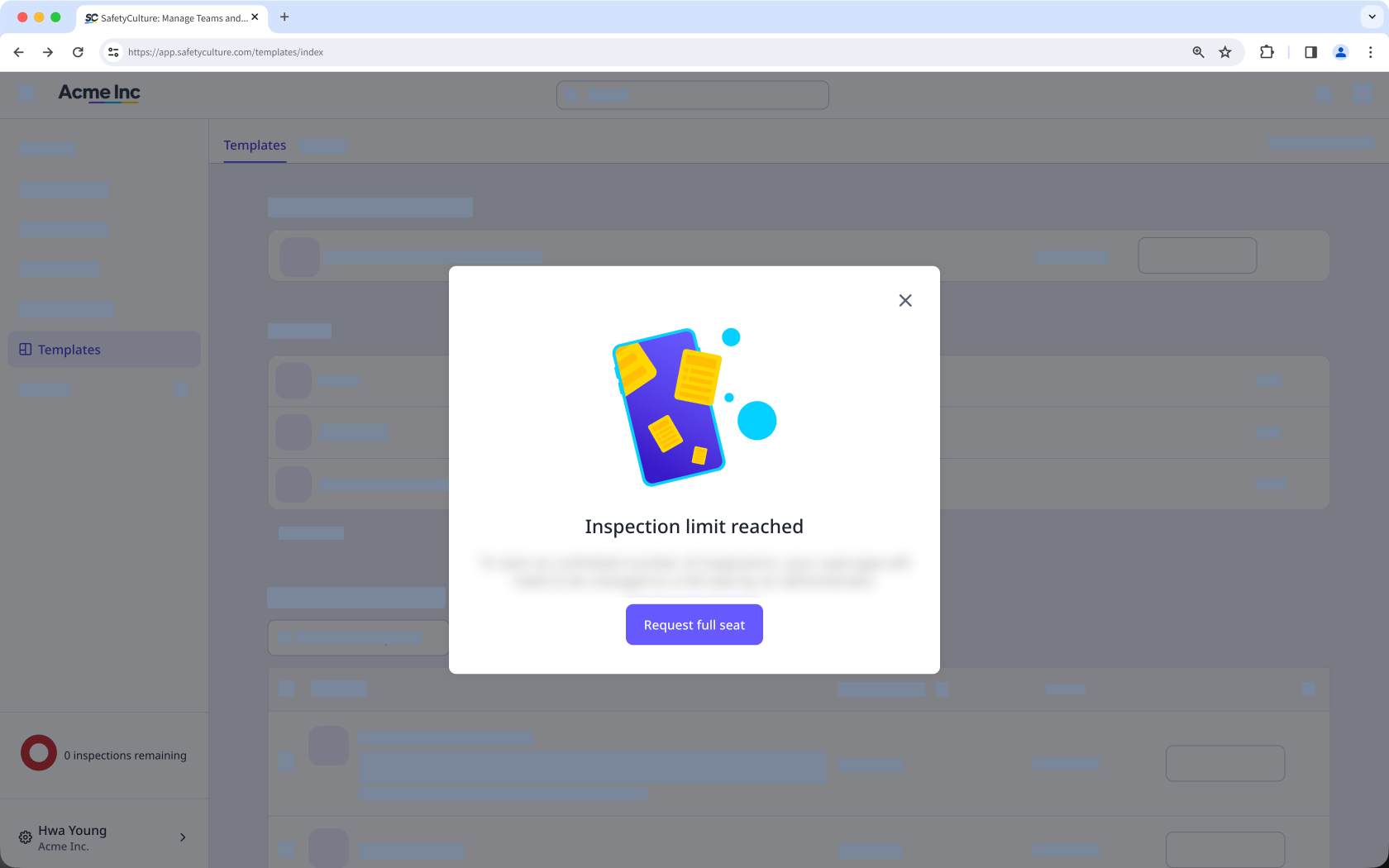
Click the inspection limit counter on the lower-left of the page.
In the pop-up window, click Request full seat. This sends a full seat request to any users in your organization that have the "Platform management: Users" permission.
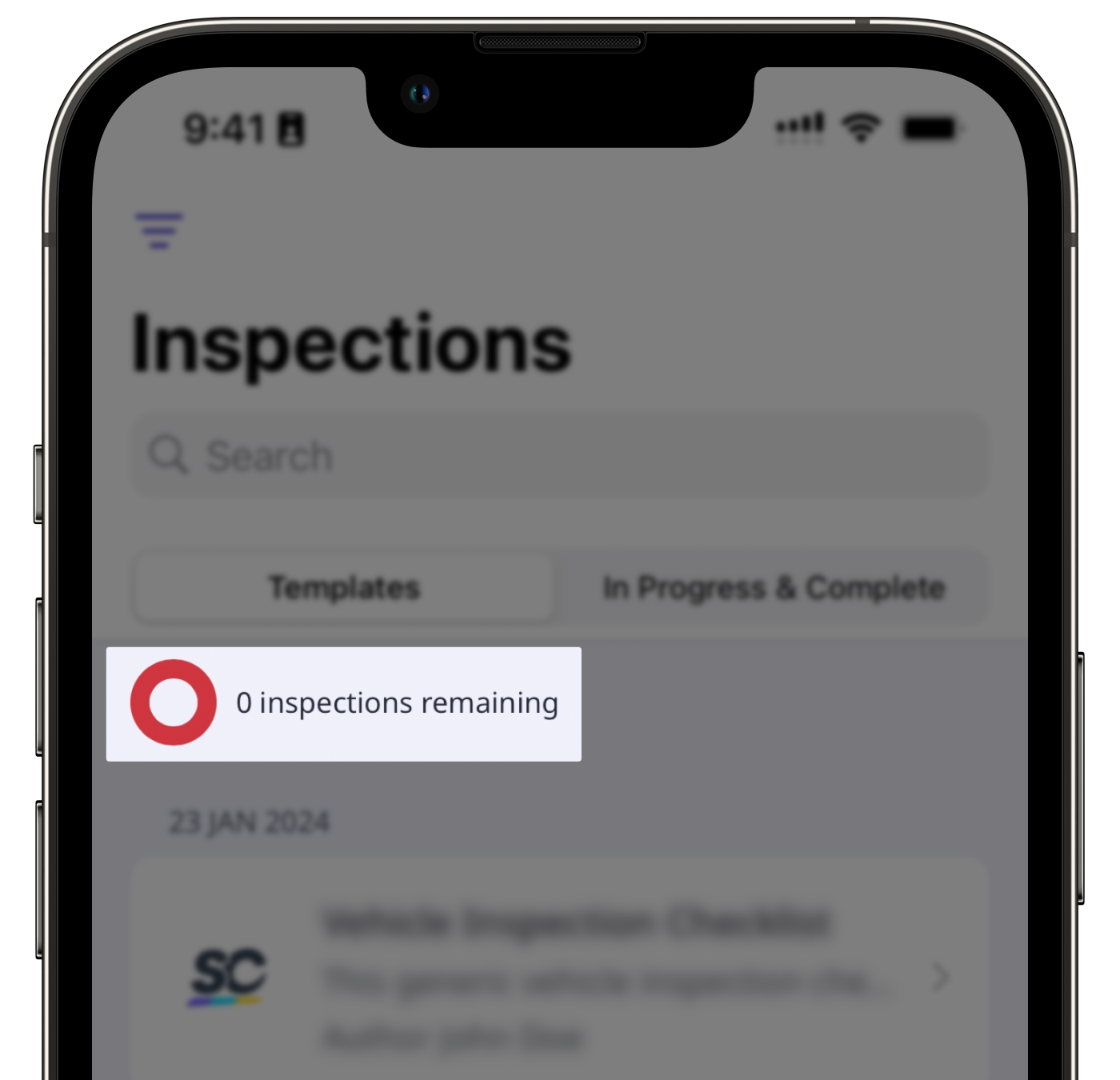
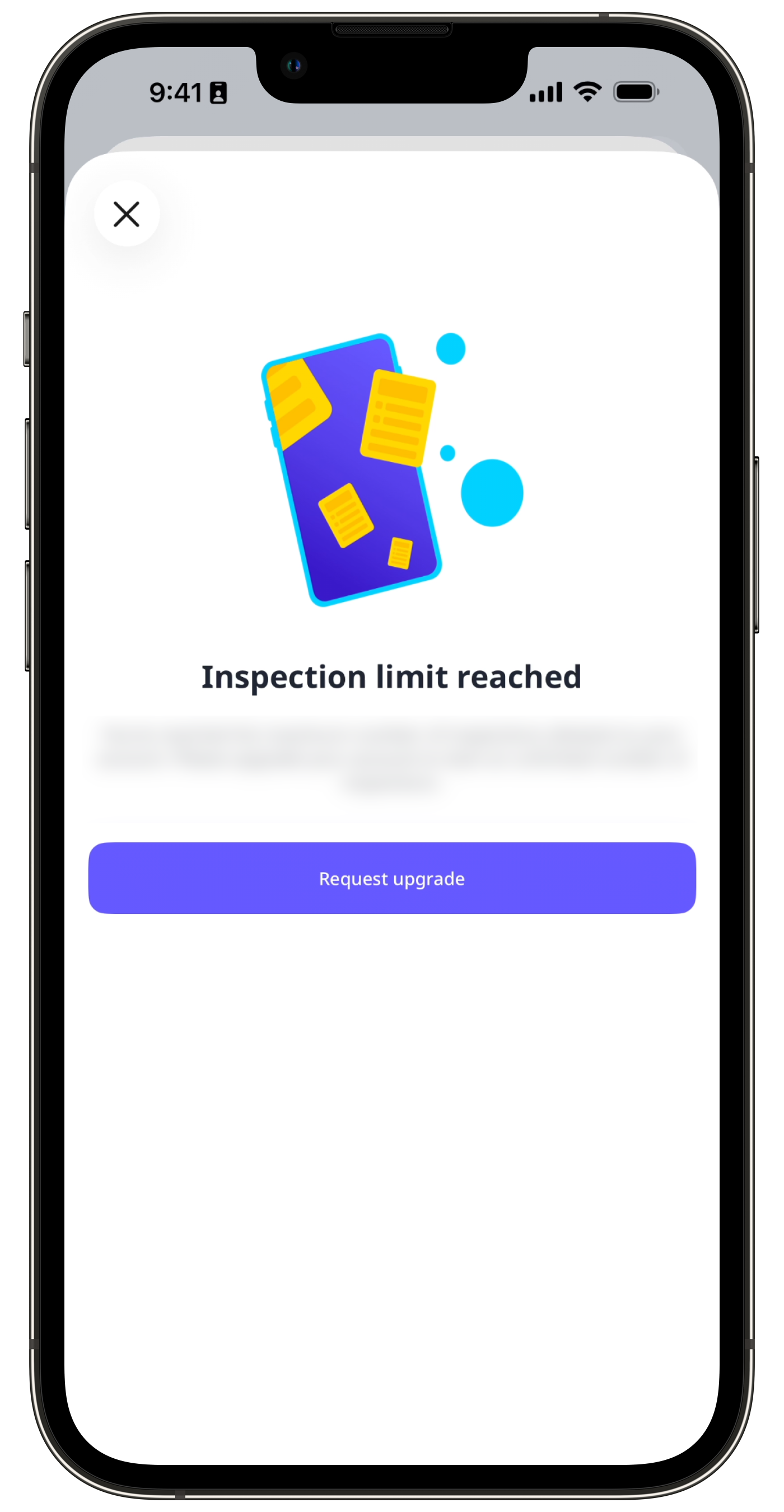
On the mobile app, you can only request a full seat when you’ve reached the inspection limit as a user in a guest seat or lite seat.


