What you'll need
You need to archive an inspection before you can delete it.
Deleting is irreversible, and we cannot restore permanently deleted items. Confirmation is always required before any deletion, so be sure you're not accidentally deleting the wrong item.
Delete an inspection
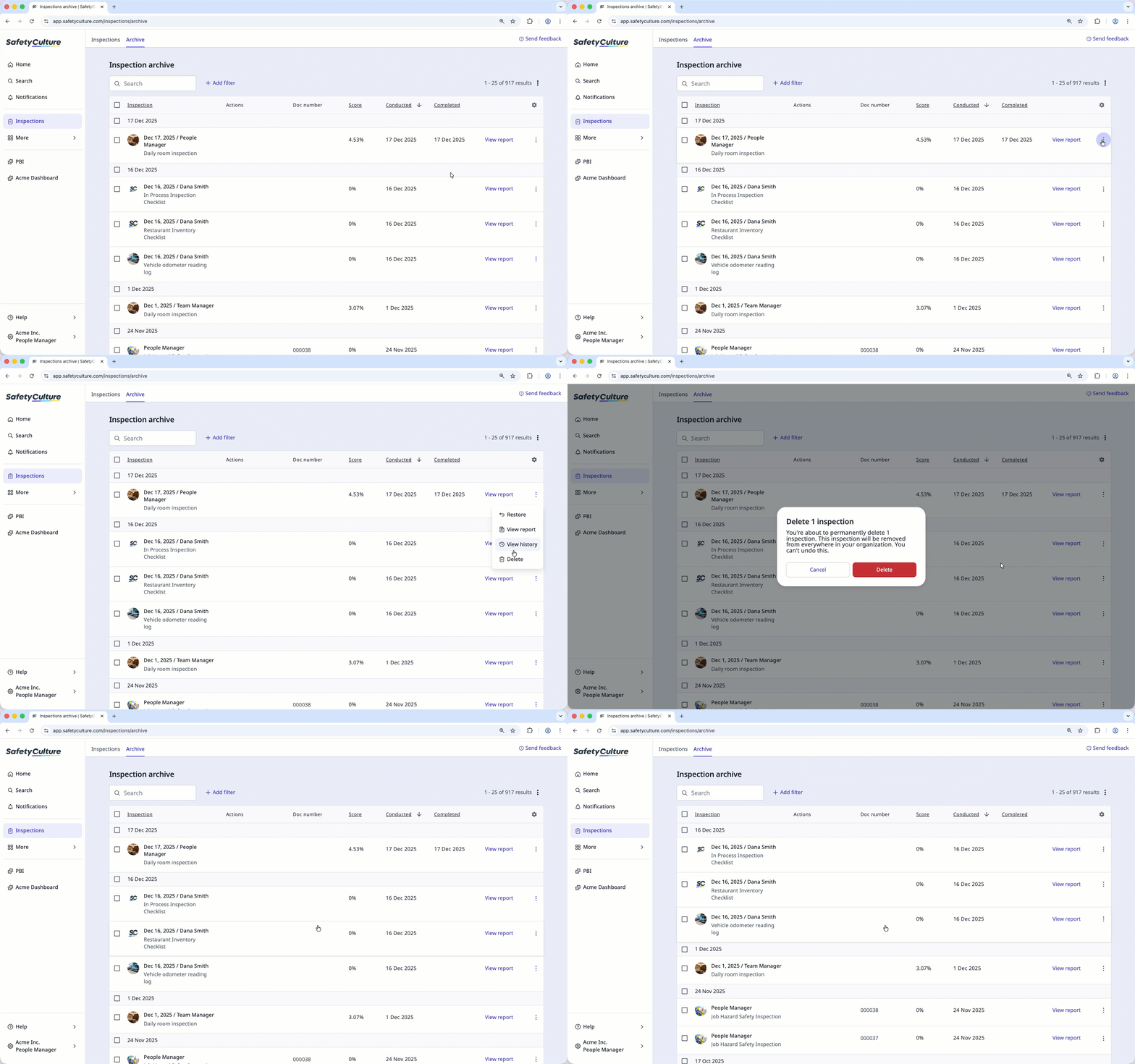
Select Inspections in the sidebar or select it in More.
Select Archive at the top of the page.
Click on the right-hand side of the inspection and select Delete.
In the pop-up window, click Delete.
Bulk delete inspections
Select Inspections in the sidebar or select it in More.
Select Archive at the top of the page.
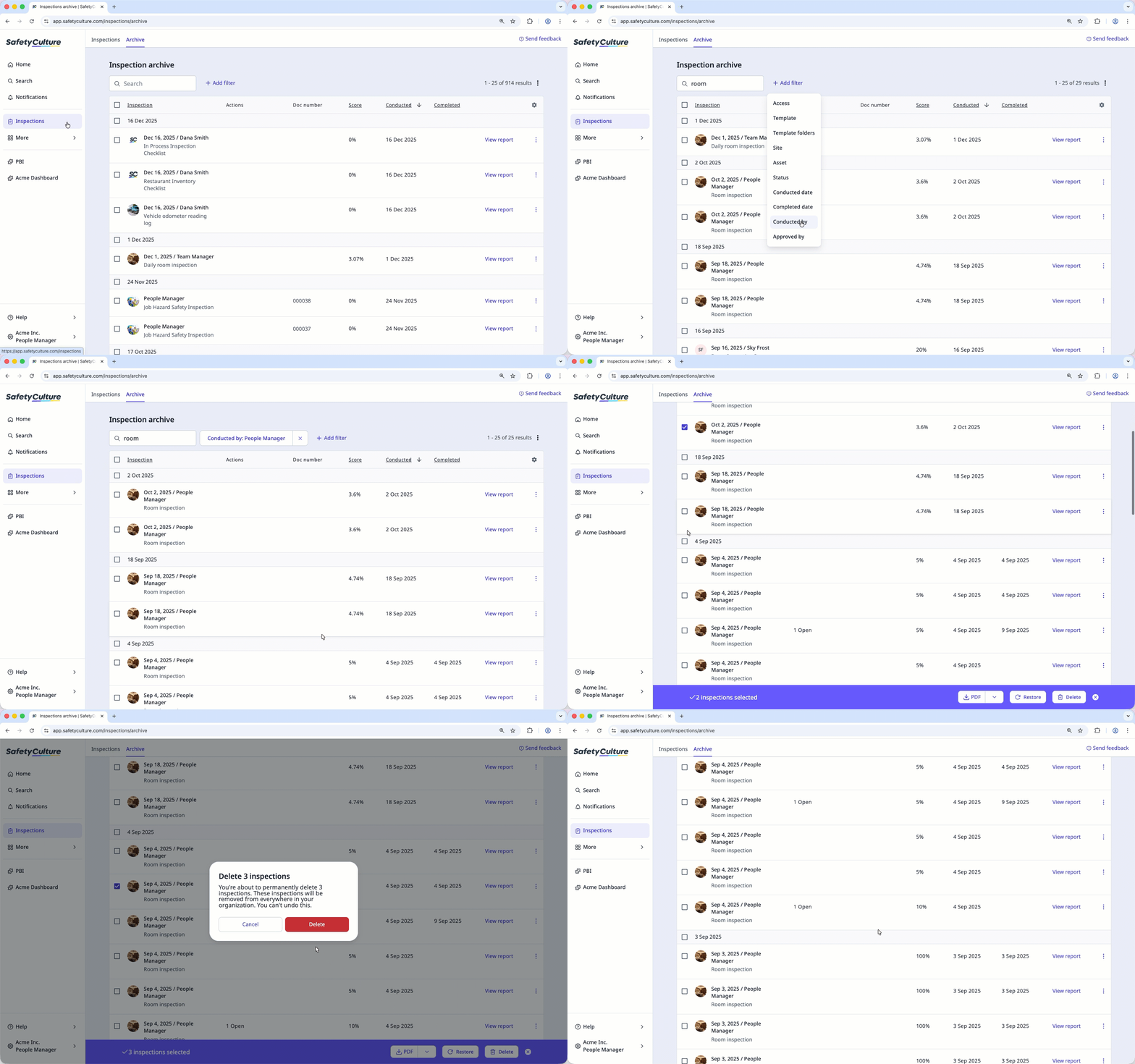
Select the inspections you want to delete by checking the boxes on the left-hand side of each inspection. You can narrow down the inspection list using the search box on the upper-left of the page or by clicking Add filter and selecting filter options.
Click Delete at the bottom of the page.
In the pop-up window, click Delete.