
Delete templates
Learn how to delete templates via the web app to reduce clutter from outdated and unused templates.Before deleting a template, you need to archive it first.
Deleting is irreversible, and we cannot restore permanently deleted items. Confirmation is always required before any deletion, so be sure you're not accidentally deleting the wrong item.
Delete a template
Select
 Templates in the sidebar or select it in
  More.
More.Select Archive on the top of the page.
Click
 on the template's right-hand side and click
  Delete.
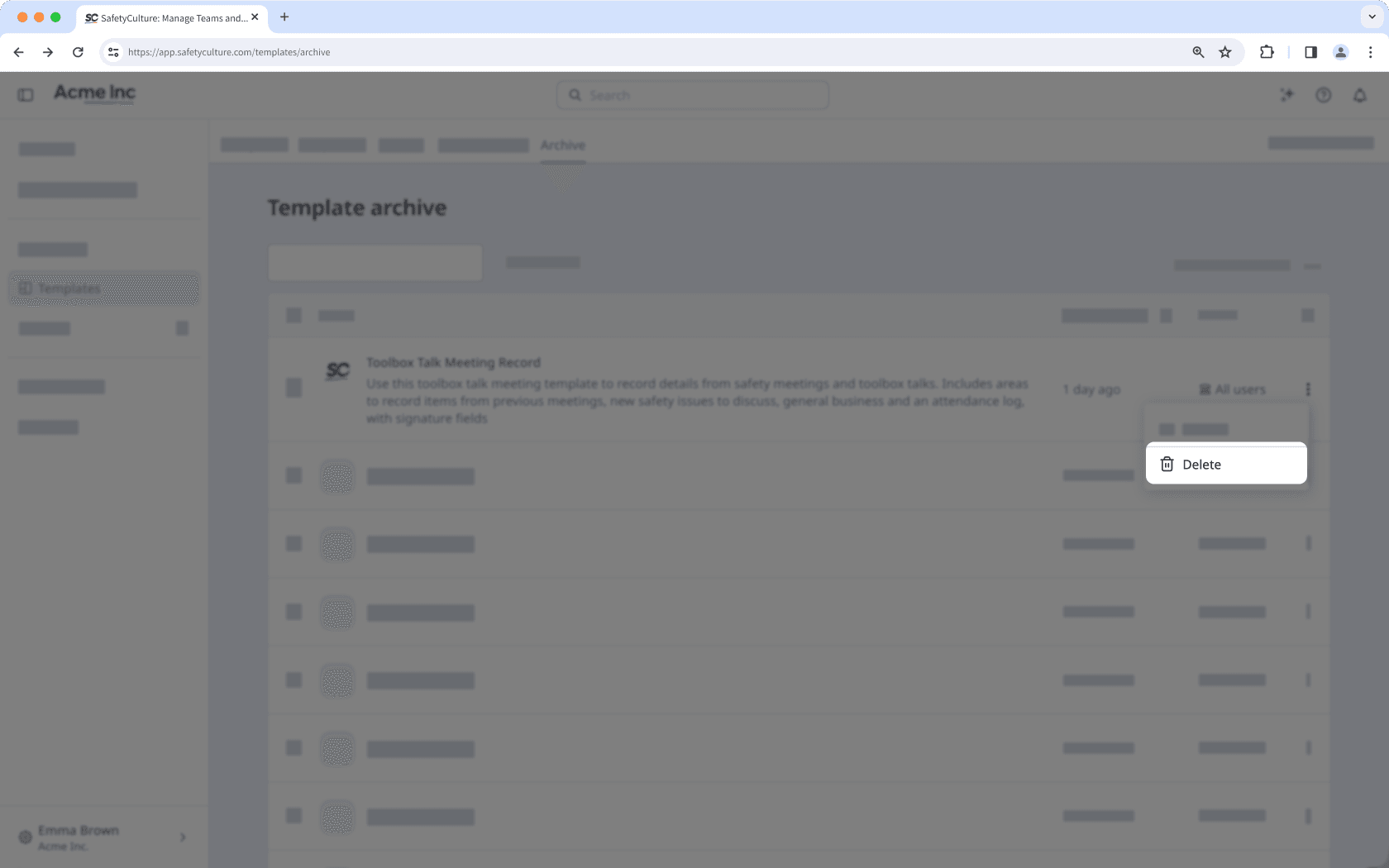
In the pop-up window, select Delete.
Bulk delete templates
Select
Templates in the sidebar or select it in More.Select Archive at the top of the page.
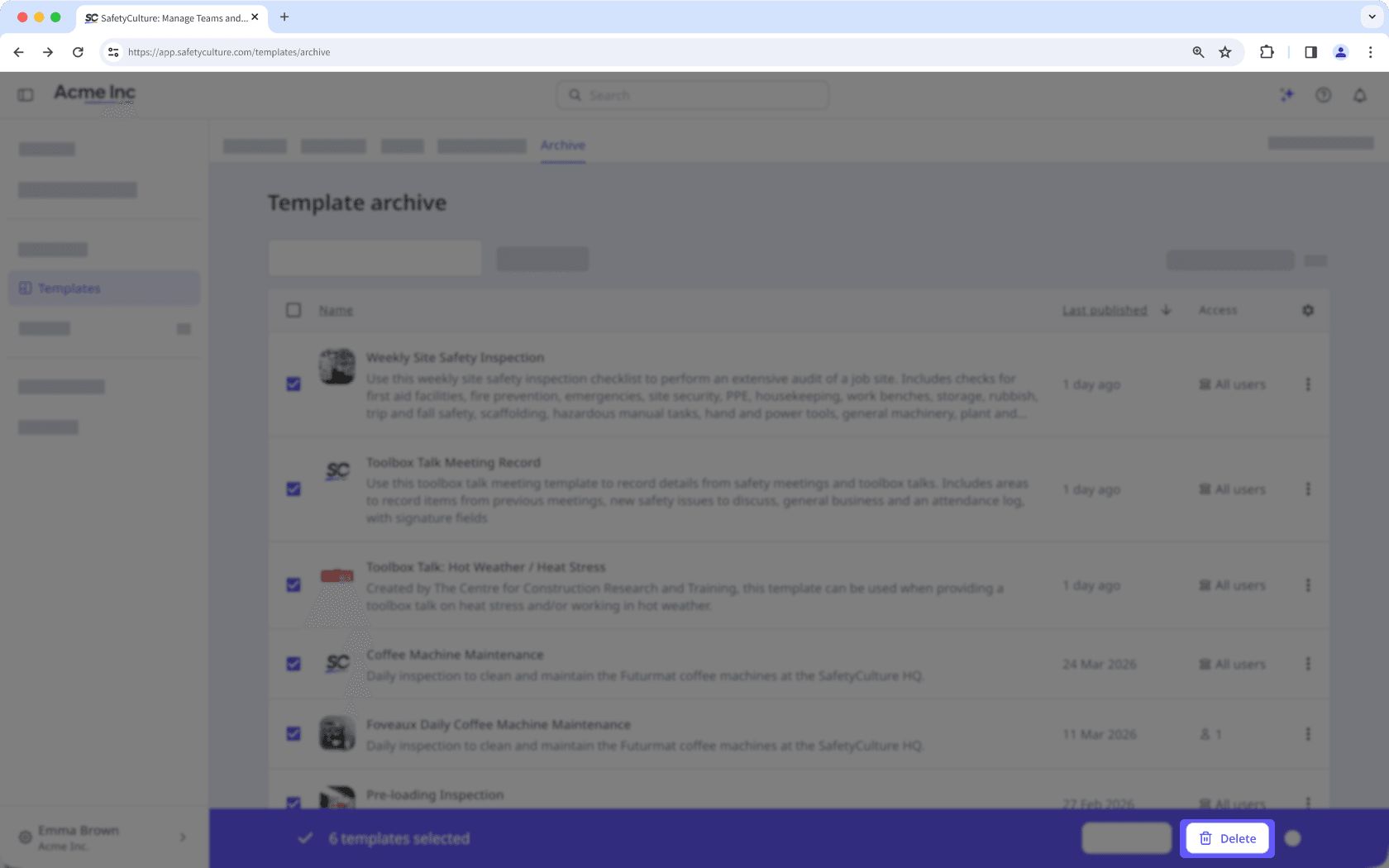
Check the templates' boxes and click
Delete on the lower-right of the page.In the pop-up window, click Delete.
Frequently asked questions
Templates that are uploaded to the Public Library will be available to download until they're removed from the Public Library.
In contrast, once a template is deleted from your organization, it won't be available in the Shared Library.
Deleting a template does not delete any existing inspections that were conducted using the template in question. However, once the template has been deleted, these inspections can no longer be duplicated.
Existing charts that include data from a deleted template remain available in Analytics. However, the template name will appear as “Template not found.”
This also means won’t be able to create new charts using the deleted template moving forward.
Was this page helpful?
Thank you for letting us know.