Deleting is irreversible, and we cannot restore permanently deleted items. Confirmation is always required before any deletion, so be sure you're not accidentally deleting the wrong item.
Delete a site or level
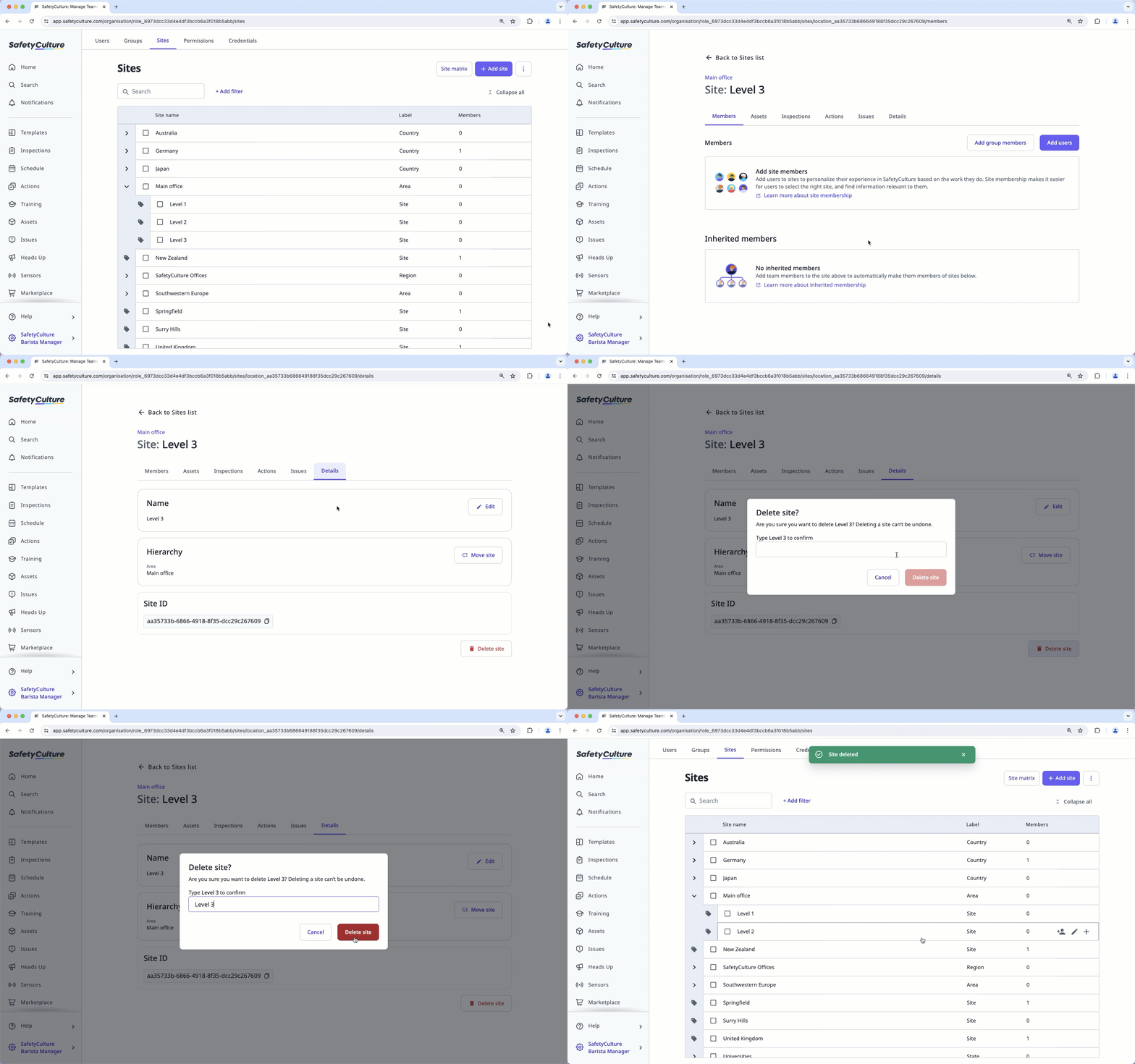
Click your organization name on the lower-left corner of the page and select Sites.
Click the name of the site or level.
On this page, select the Details tab and click Delete site.
In the pop-up window, enter the site's name and click Delete site.
Bulk delete sites or levels
Click your organization name on the lower-left corner of the page and select Sites.
Check the sites' or levels' boxes and click Delete on the lower-right of the page.
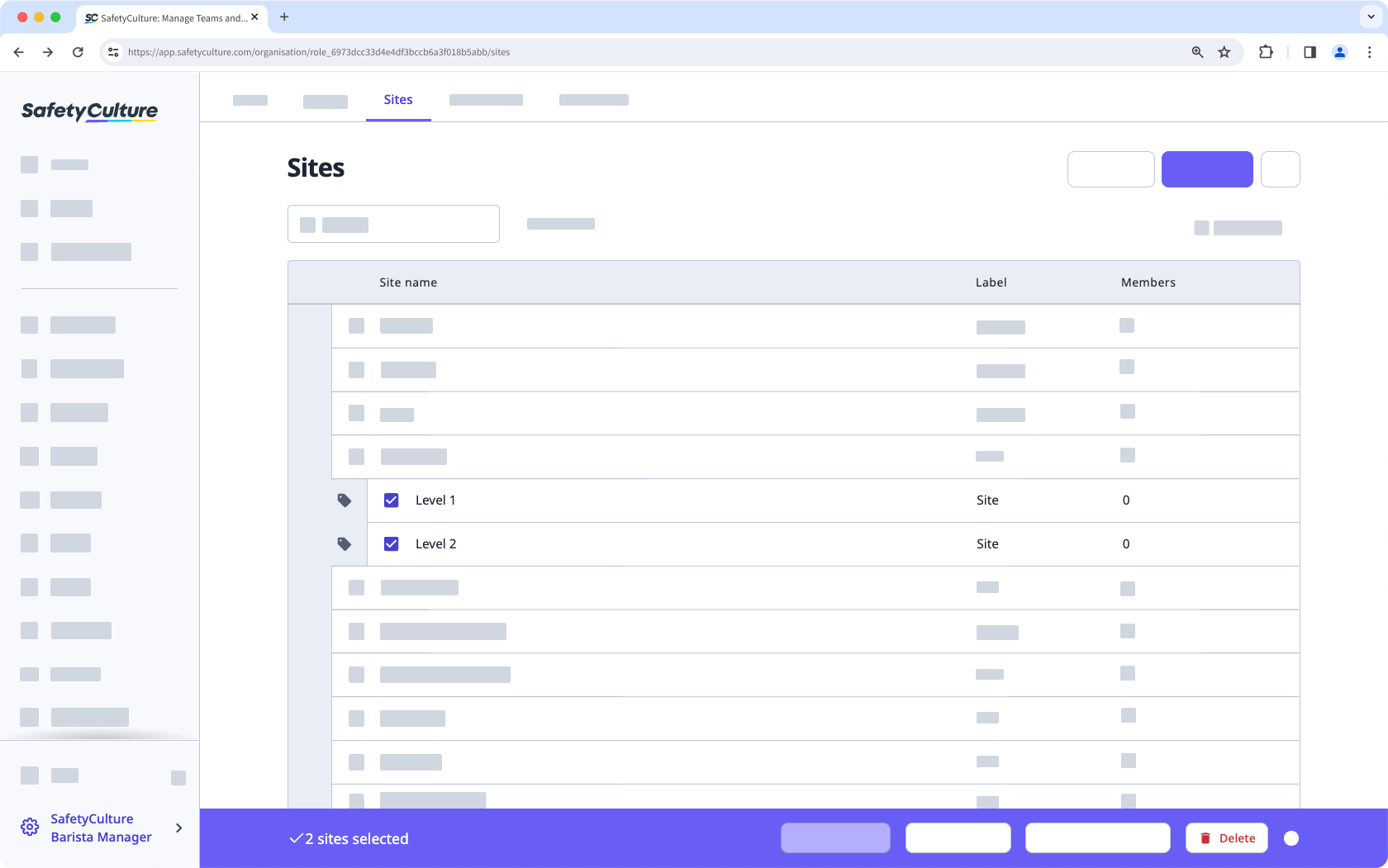
In the pop-up window, enter the first selected site's name and click Delete sites.