What are inspection durations?
Inspection durations refer to the time a user takes to complete an inspection. It measures the time from the start of an inspection to its completion, including any time spent editing before submission. For example, the timer starts when a worker begins an inspection and stops once they complete it.
Inspection durations help you track your team's productivity and understand how long inspections typically take across your organization. By understanding how long inspections actually take, you can streamline processes, allocate resources more effectively, and drive more consistent performance.
What you'll need
How is an inspection's duration recorded?
The inspection duration begins recording once you start the inspection. Recording pauses if you close the inspection, exit the mobile app, or close the web app tab.
Duration is recorded differently in the web app and the mobile app:
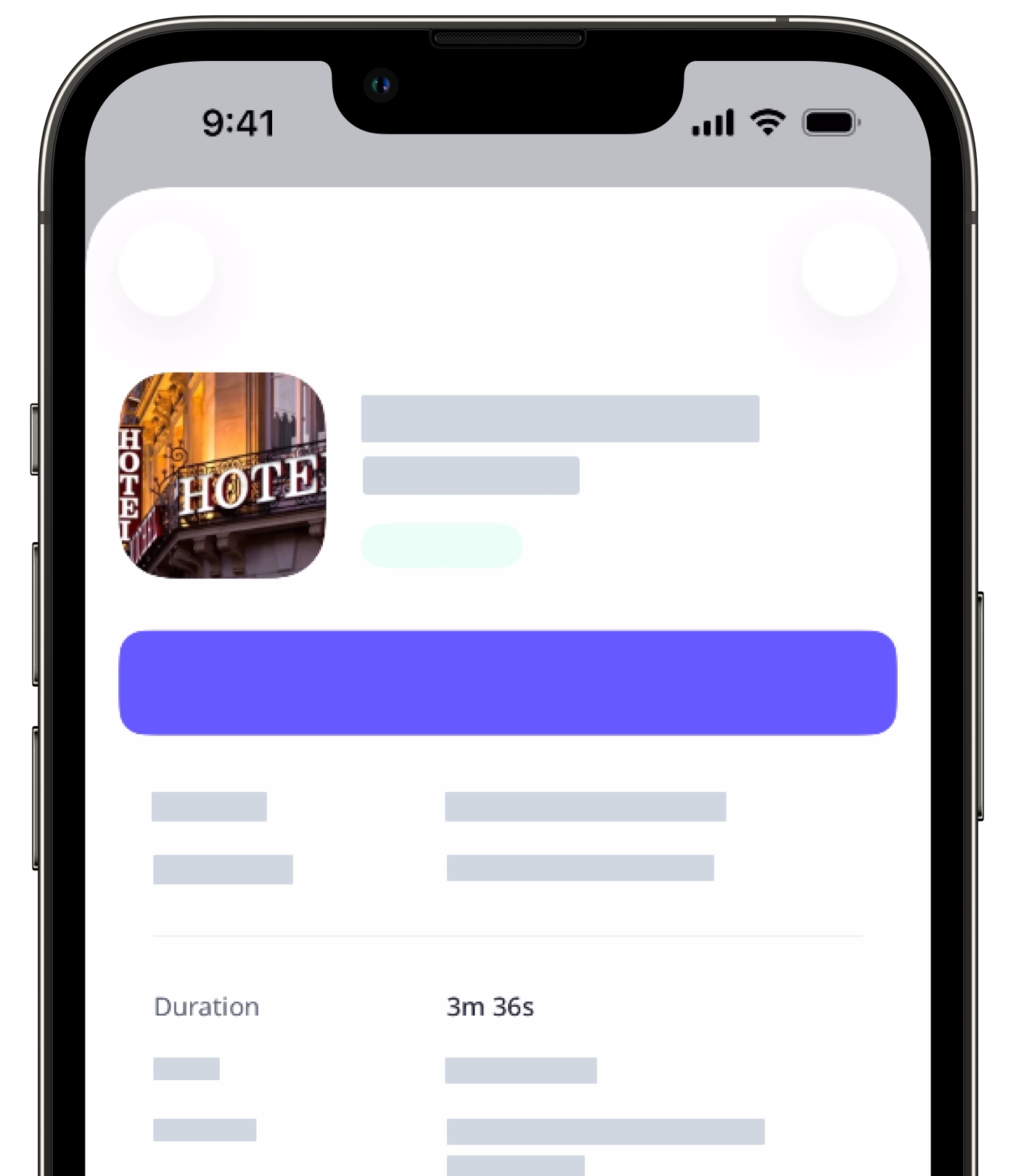
Mobile app: An inspection's duration is recorded whenever a user is in the edit screen of the inspection.
Web app: An inspection's duration is recorded and updated whenever a user moves between inspection pages or completes the inspection. In addition, the duration is updated every five minutes.
If you edit a completed inspection, the time spent editing won't be added to the duration unless you mark the inspection as incomplete first. To make sure the correct duration is recorded, mark the inspection as incomplete before applying your changes.
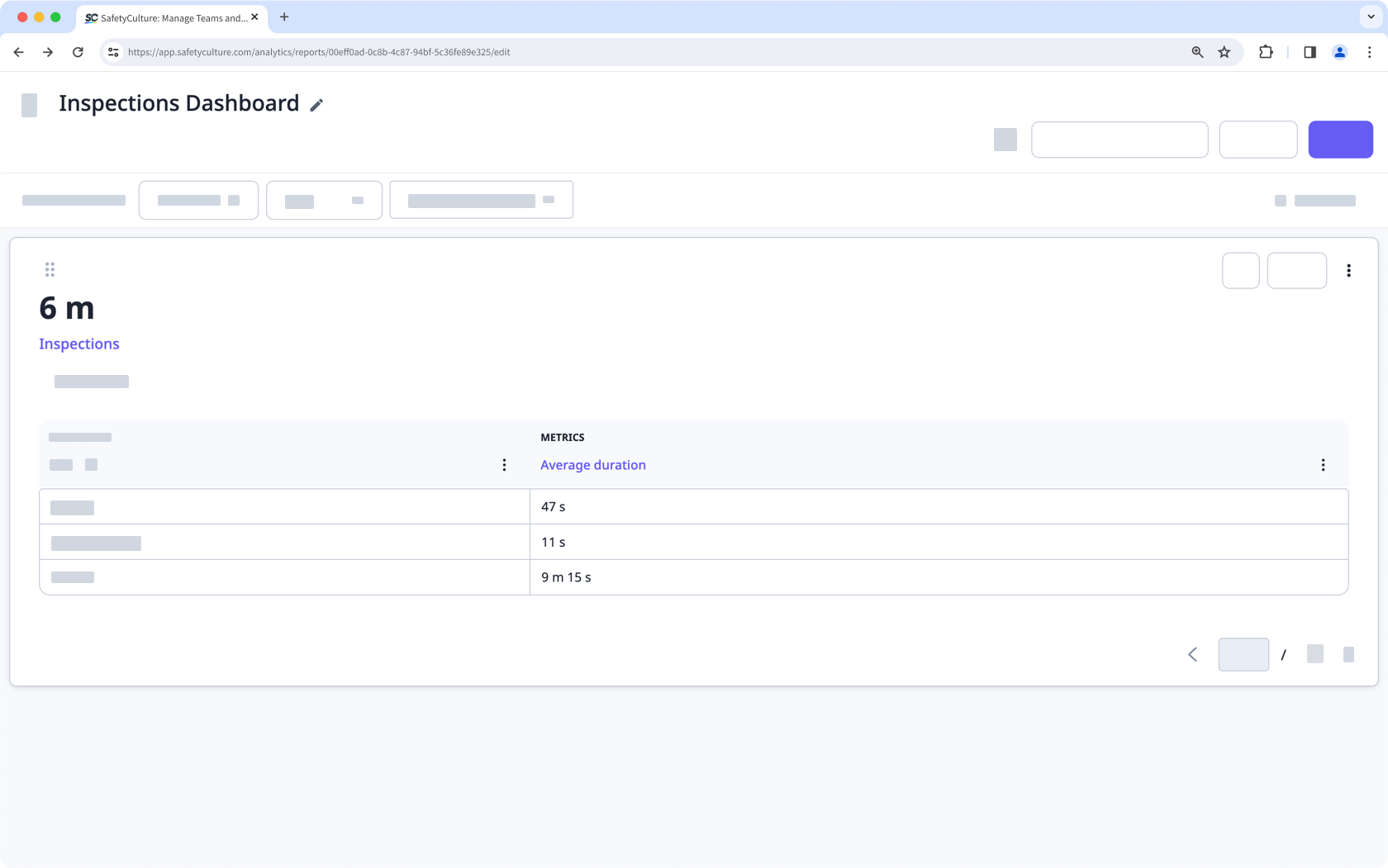
If you want to view an inspection's duration via the web app, you can only do so via the Analytics feature, which is only available to organizations on Premium Plan or Enterprise Plan.
View an inspection's duration
Select Analytics from the menu on the left panel.
Create a new dashboard or click an existing one.
If you've opened an existing dashboard, click Edit on the upper right of the page.
Click Add chart on the upper-right of the page.
Customize the chart accordingly and select Average duration as the metric.
Click Save on the upper-right corner.
Inspection durations for inspections conducted via the web app are only available for those started after January 20, 2022.