What you'll need
Add or update your profile picture
Click your username on the lower-left corner of the page and select My profile.
Click Settings on the upper-right side of the page, next to your username, to view user settings.
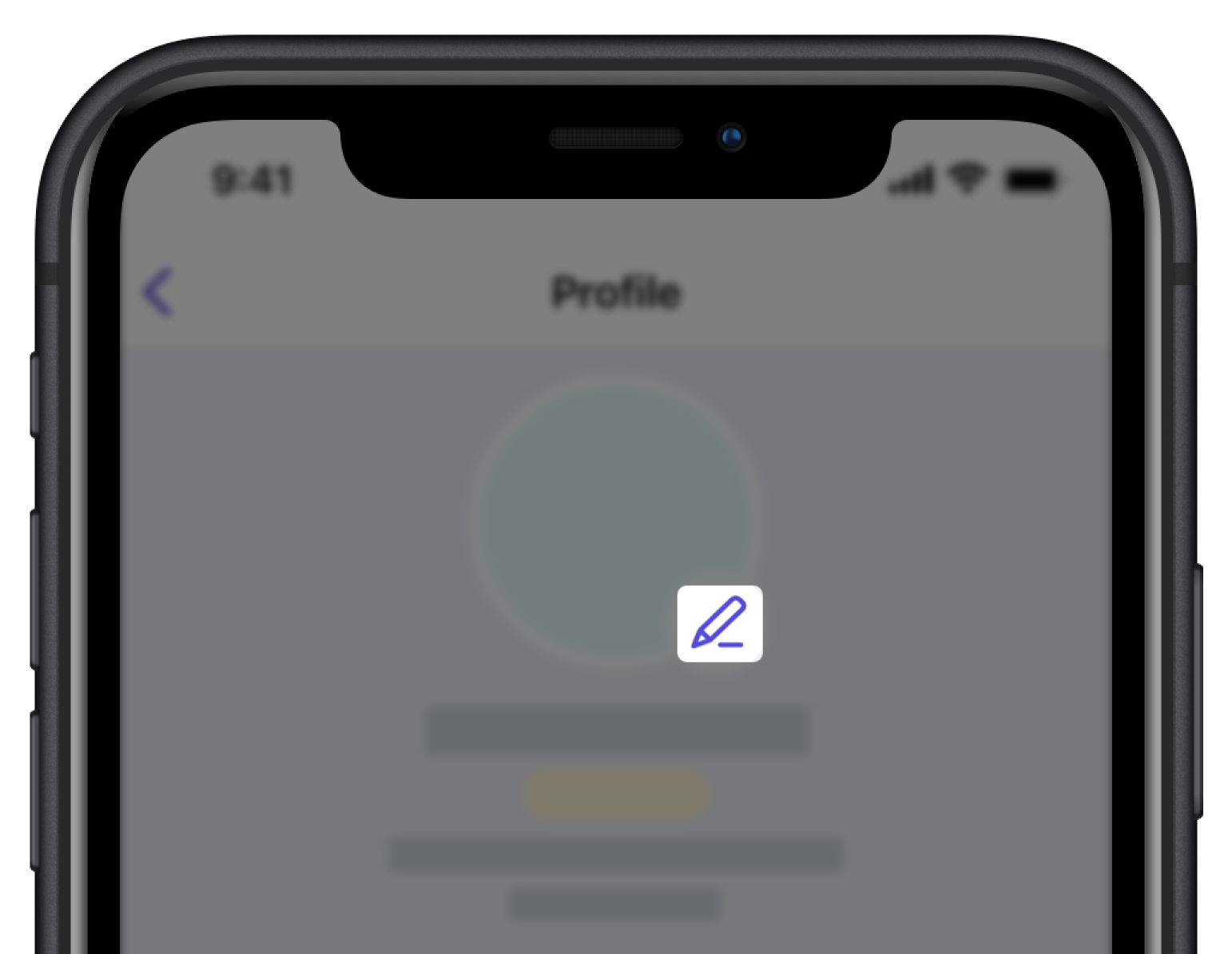
Click on the upper-left of the page, next to your username.
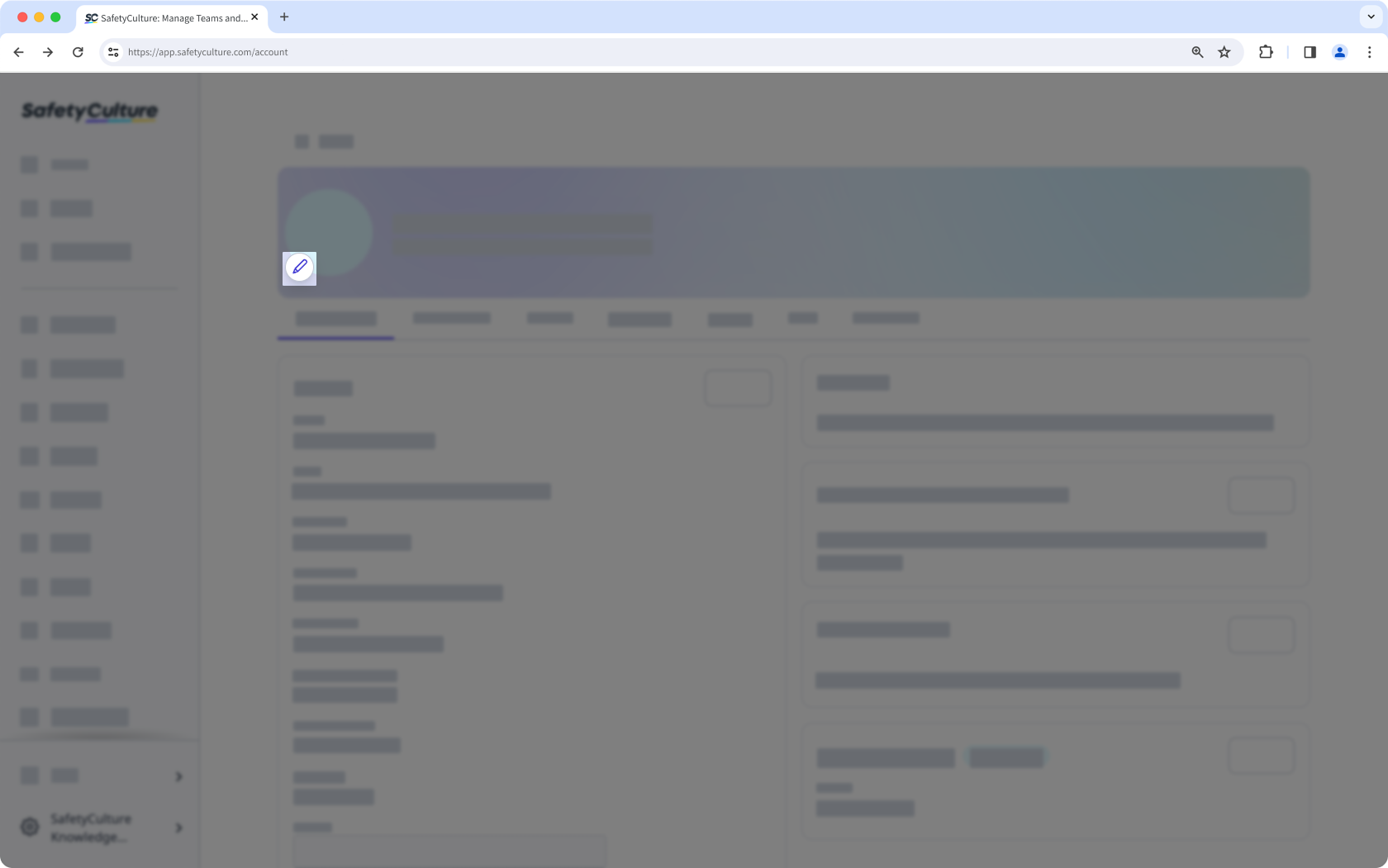
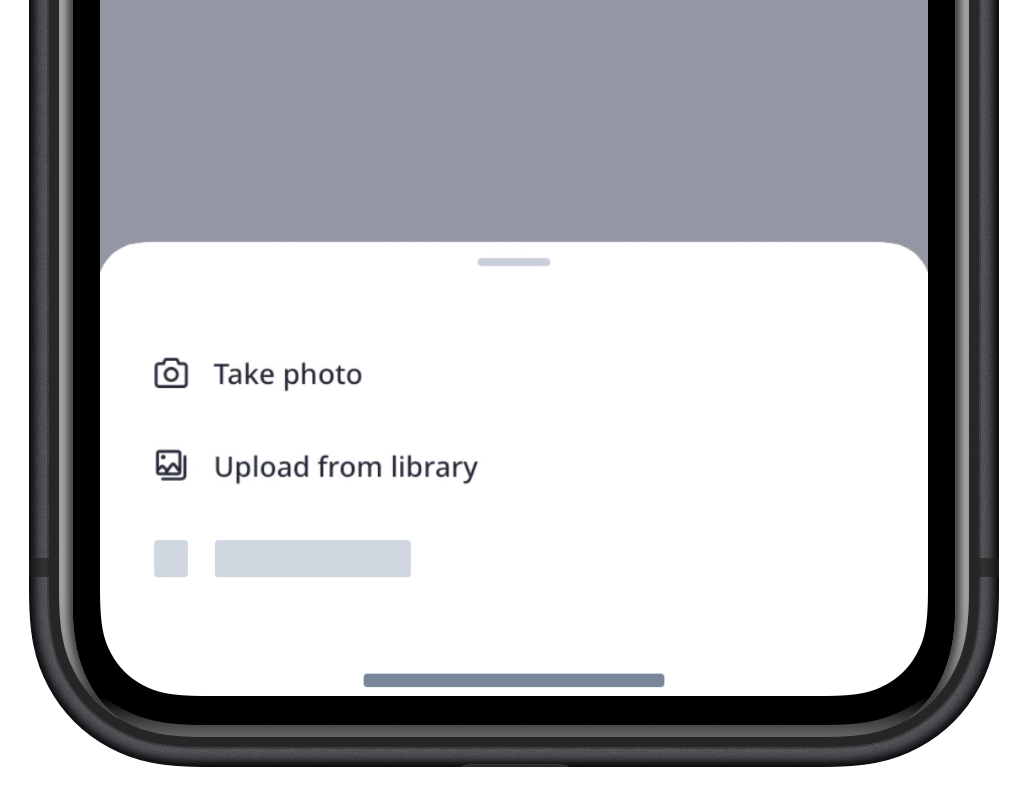
In the pop-up window, upload the photo you want to use as your profile picture. If there's an existing profile picture, click Upload photo first.
Adjust the dimension of your profile picture. For the best visual experience, we recommend uploading an image sized 500x500 pixels.
Click Upload.
Account profile pictures can only be added and removed by users themselves. Administrators cannot make profile picture changes for users.
Remove your profile picture
Click your username on the lower-left corner of the page and select My profile.
Click Settings on the upper-right side of the page, next to your username to view user settings.
Click on the upper-left side of the page, next to your username.
In the pop-up window, click Remove.