Archiving weather data feeds works differently from physical sensors.
Archive a sensor
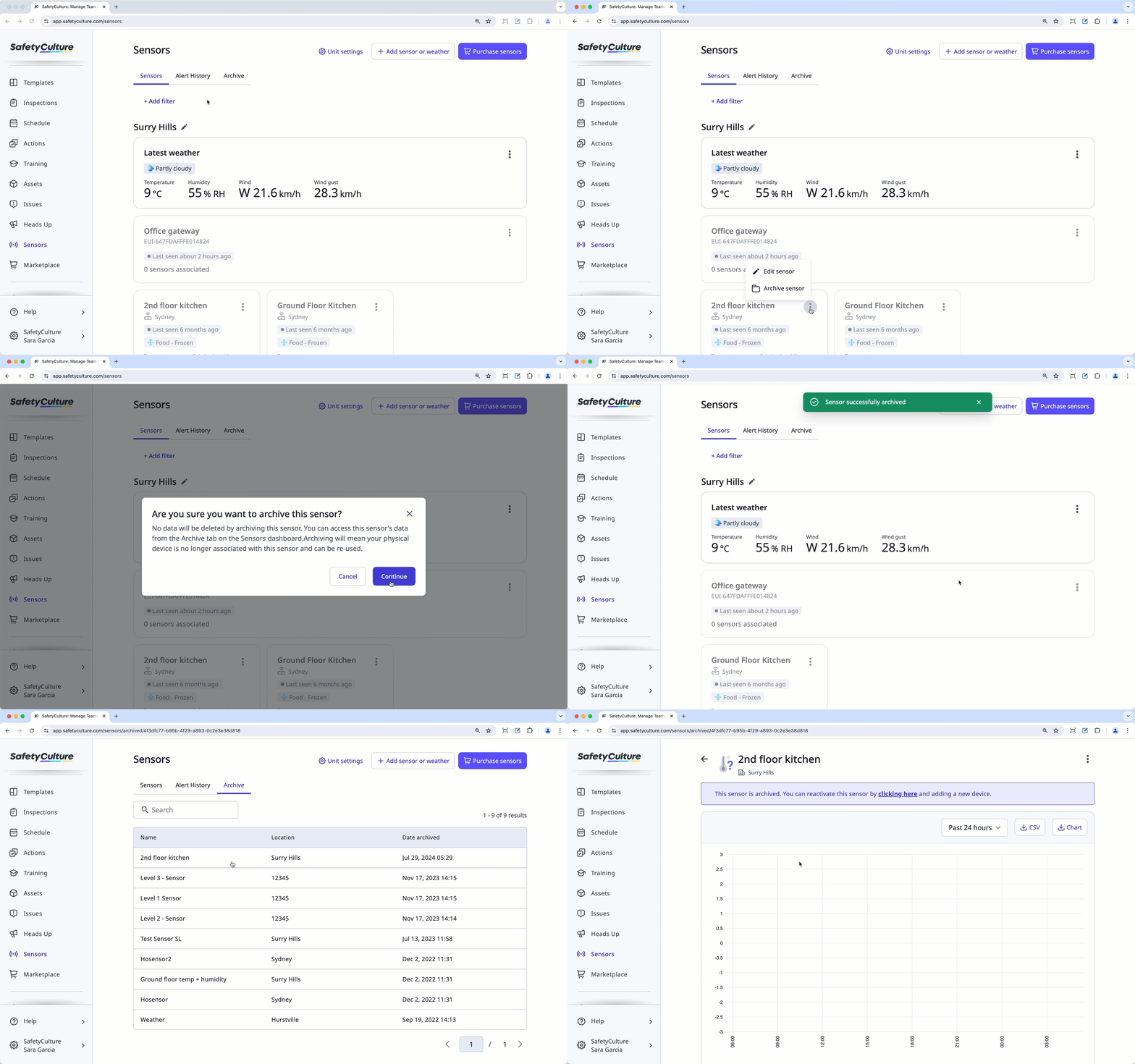
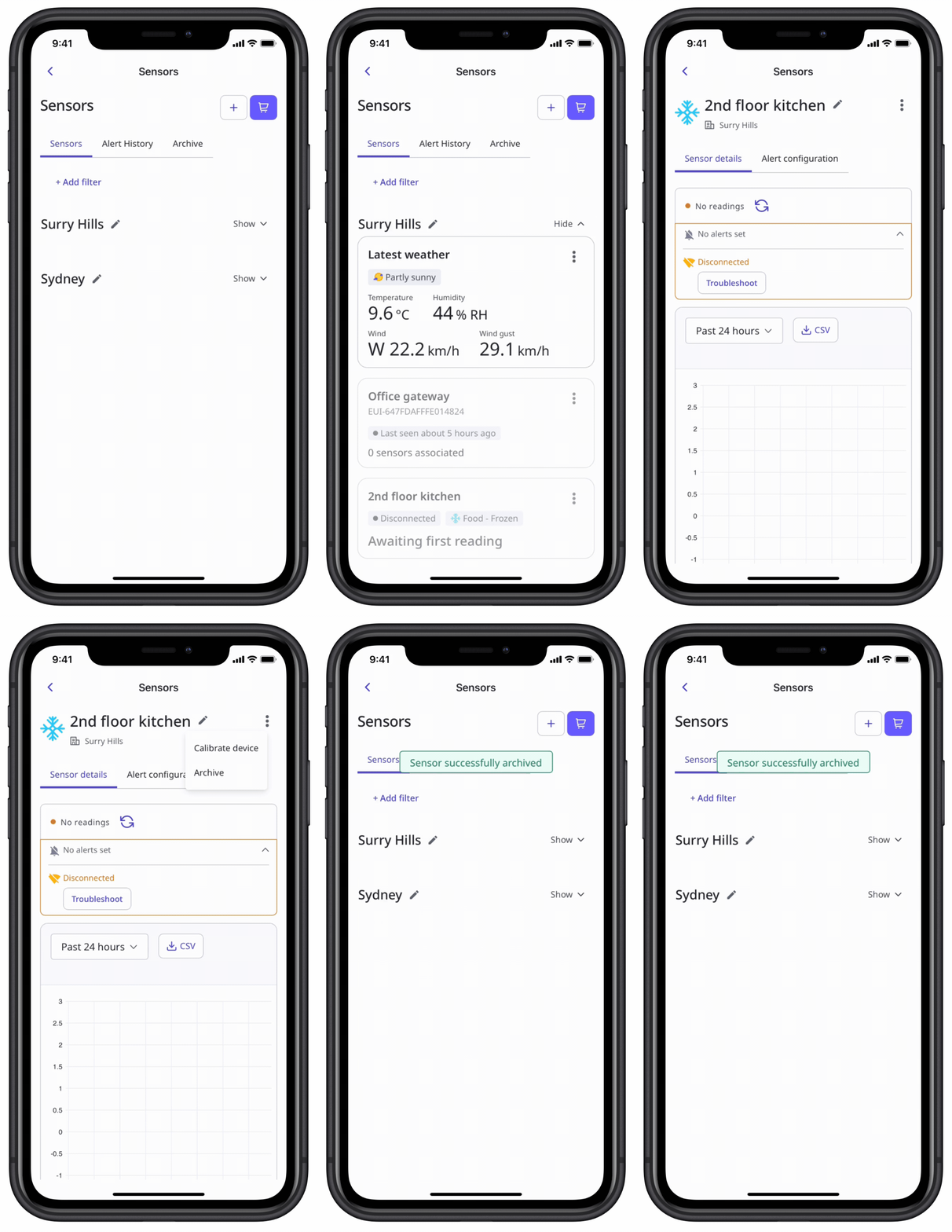
Select Sensors in the sidebar or select it in More.
Click the sensor you want to archive.
Click on the upper-right of the sensor.
Select
 Archive sensor.
In the pop-up window, click Archive. You can view the archived sensor in Archive from the tab at the top of the page.
You can replace your sensor device and still keep your data. Simply archive the old sensor, and then when you unarchive it, swap the old ID code with the new one.
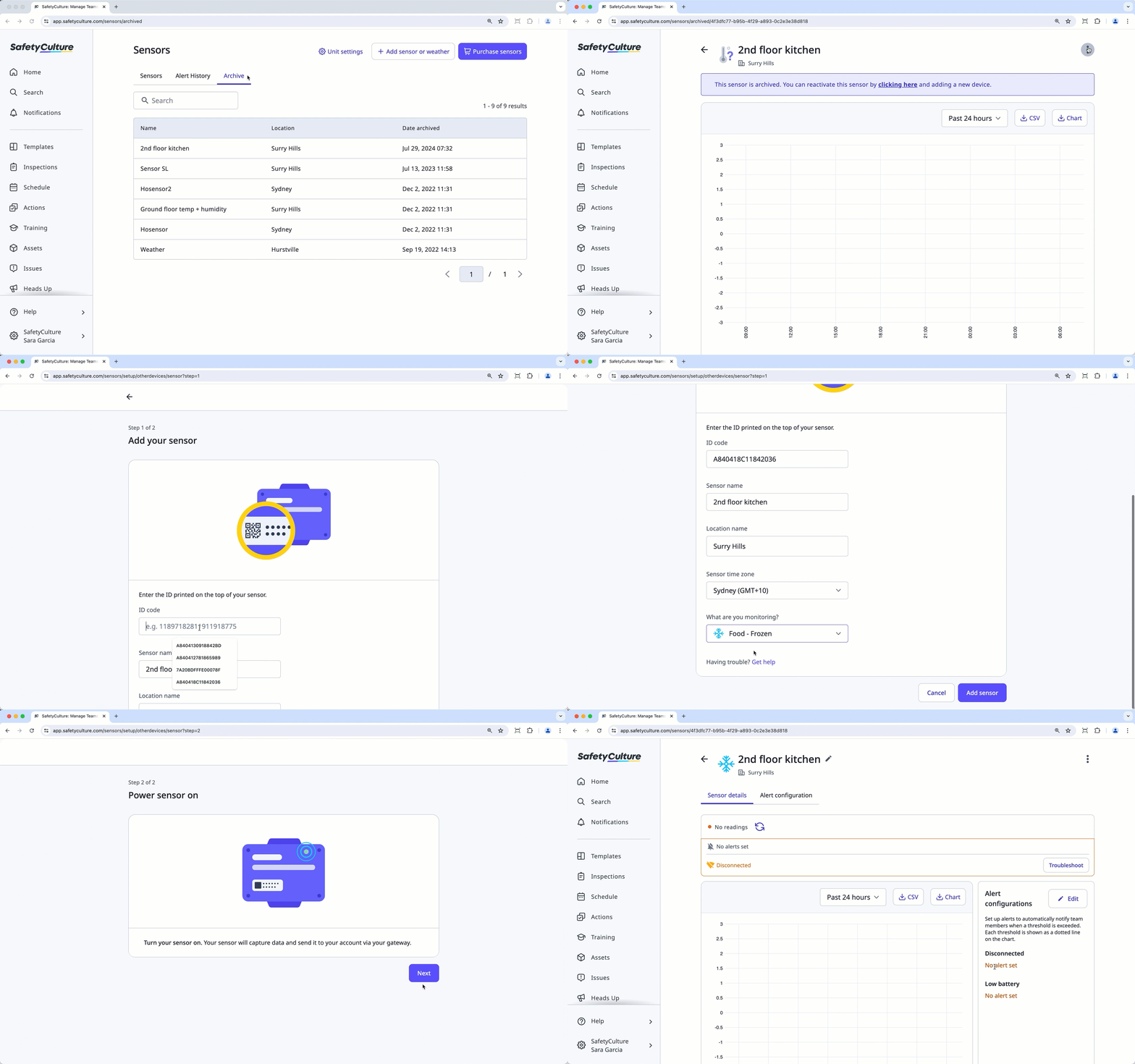
Unarchive a sensor
Select Sensors in the sidebar or select it in More.
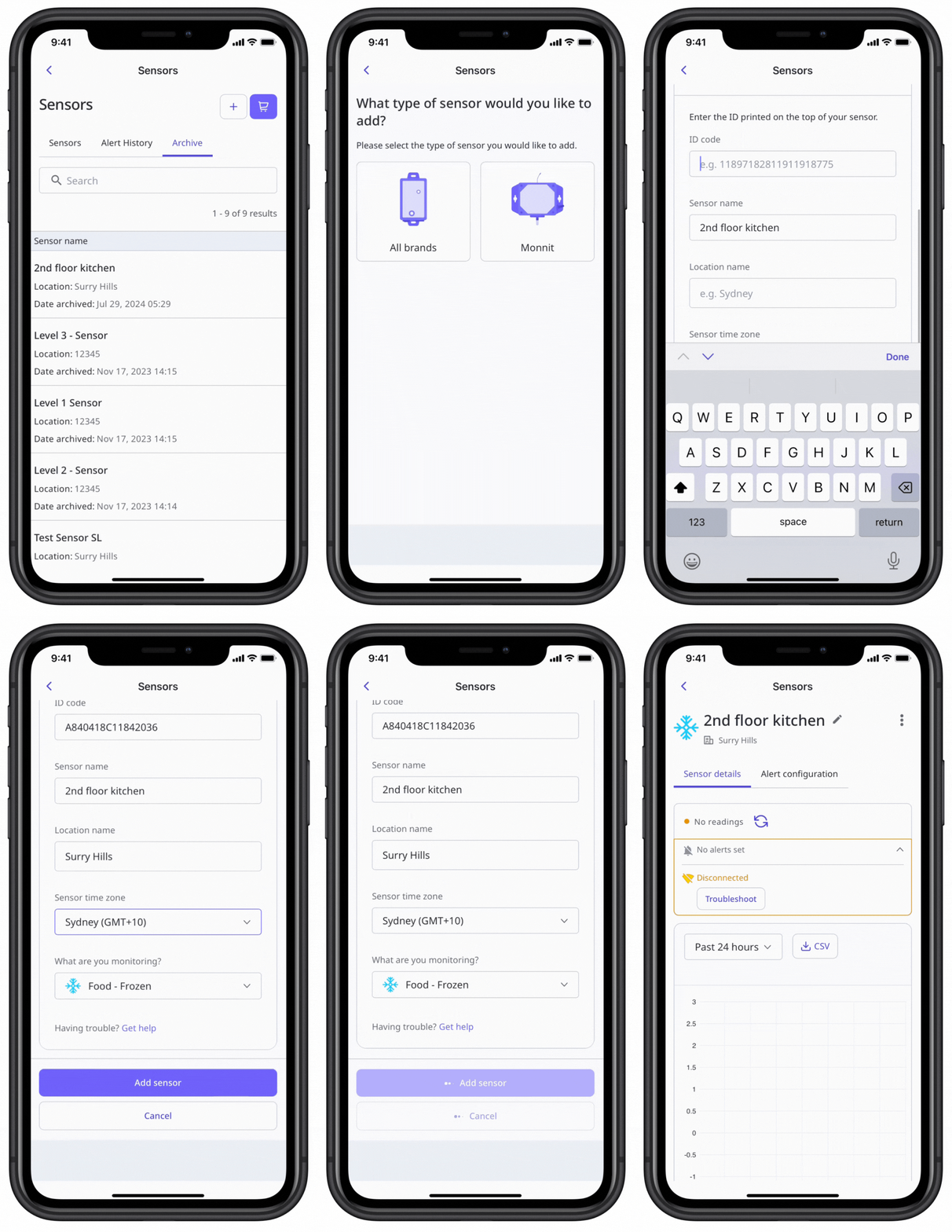
Select Archive from the tab at the top of the page.
Click the sensor you want to unarchive.
Tap at the upper-right corner of the screen, and select Unarchive.
Select All brands for sensors purchased from SafetyCulture. For Monnit sensors, you can refer to the Monnit sensor installation guide.
Fill in the following fields:
ID code: Enter your sensor's ID code. This is an alphanumeric code that begins with "DevEUI".
Sensor name: Name the sensor. We recommend that you name the sensor after the asset or area it will be monitoring.
Location name: Create or select a location.
Sensor time zone: Select the time zone of the sensor's location.
What are you monitoring?: Select the most appropriate category for the type of asset the sensor will be monitoring.
Tap Add sensor.
Turn on your sensor.
Tap Next.
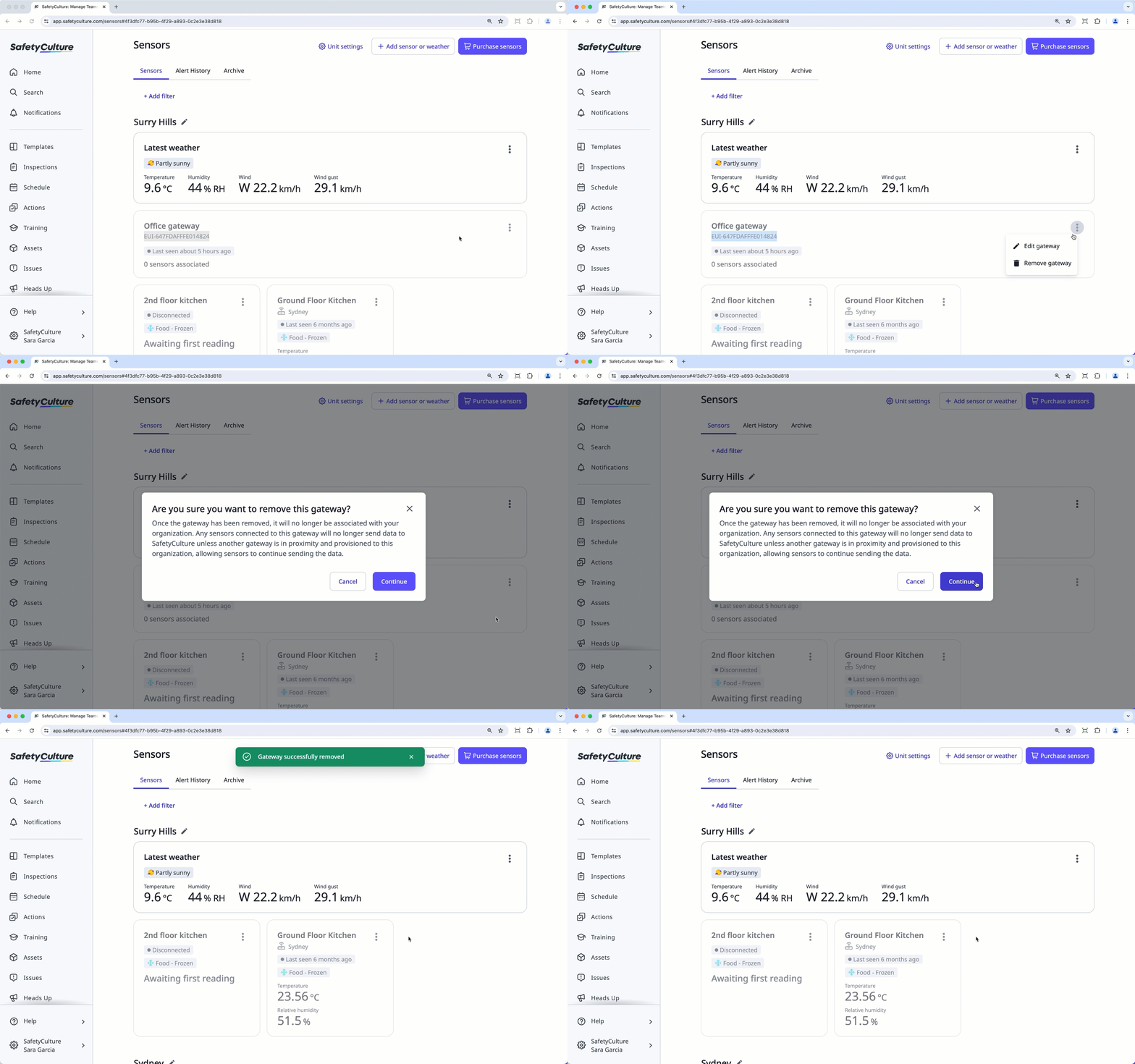
Once you remove a gateway, it will no longer be associated with your organization.
Remove a gateway
Select Sensors in the sidebar or select it in More.
Click the gateway.
Click on the upper-right of the page.
Select Remove gateway.
In the pop-up window, click Continue.