Why add inspection report logos?
Adding logos to your inspection reports is a great way to help stakeholders recognize your brand and create goodwill through the services you provide. You can set up your inspection reports with logos, so that professional reports can be generated and sent out regardless of whether you're on site or at your desk.
What you'll need
How do report logos work?
Inspection report logos can be added in two ways. Either specific to report layouts or templates. You can compare the two methods and choose the best one to use:
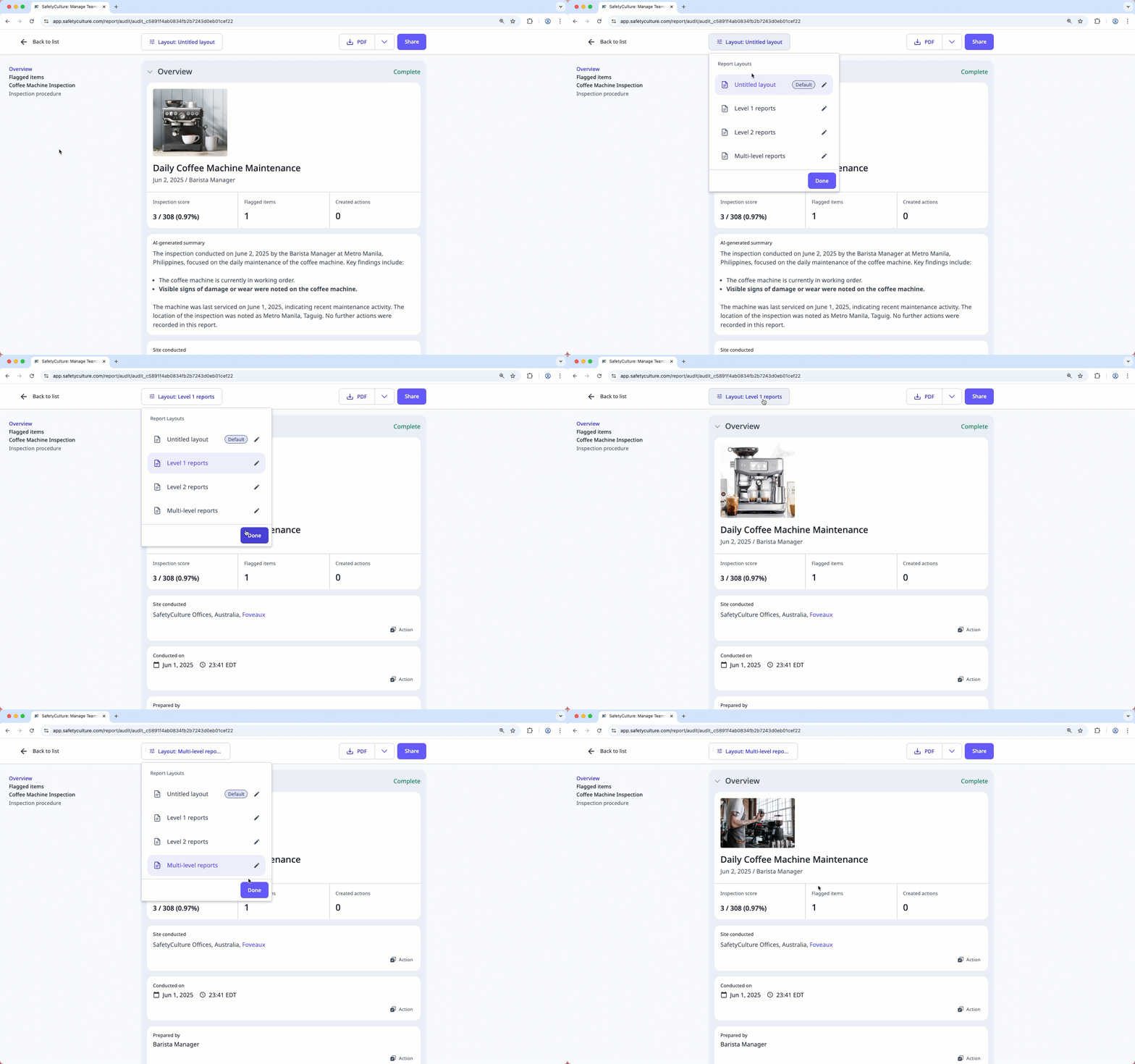
Report layout logos: A report layout logo is attached to the relevant report layout, meaning it's used whenever a user selects the layout for inspection reports. The logo can be applied to past inspections by using the report layout they have added the logo to. We recommend using this method, as you can create multiple layouts for different scenarios.
Template logos: A template logo determines the template thumbnail and becomes the default logo shown on inspection reports originating from the template. Keep in mind that updates made to template logos only apply to new inspections, not existing ones.
You need to create at least one report layout for your template to add a report logo.
We recommend using logo files that are 900 x 400 in pixels and no larger than 5MB in size.
Add or update a report layout logo
Select Templates in the sidebar or select it in More.
Click the template and select Edit report in the side panel.
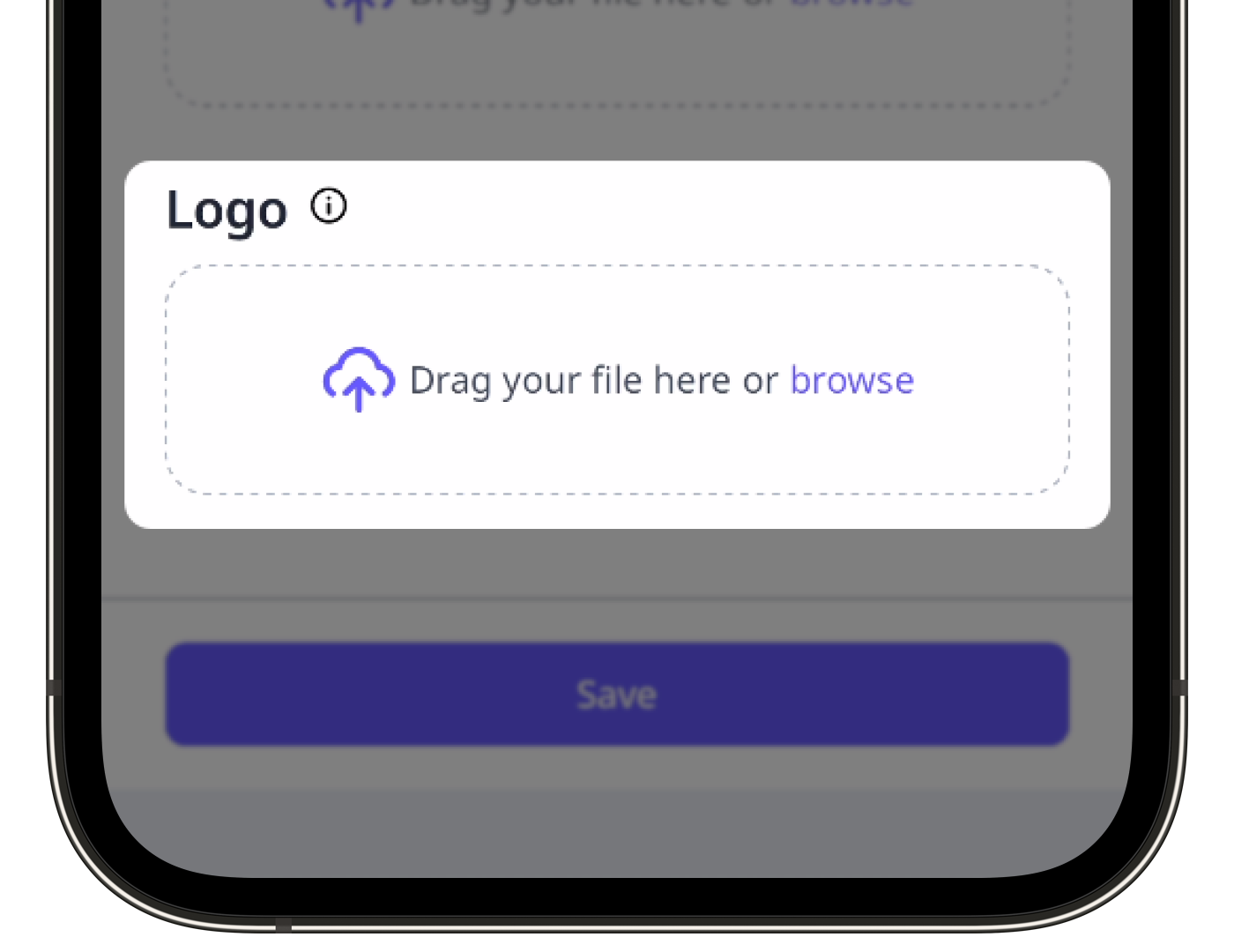
In the side panel, click browse or drag and drop your image file into the "Logo" section. Alternatively, click Upload a different logo to edit an existing one.
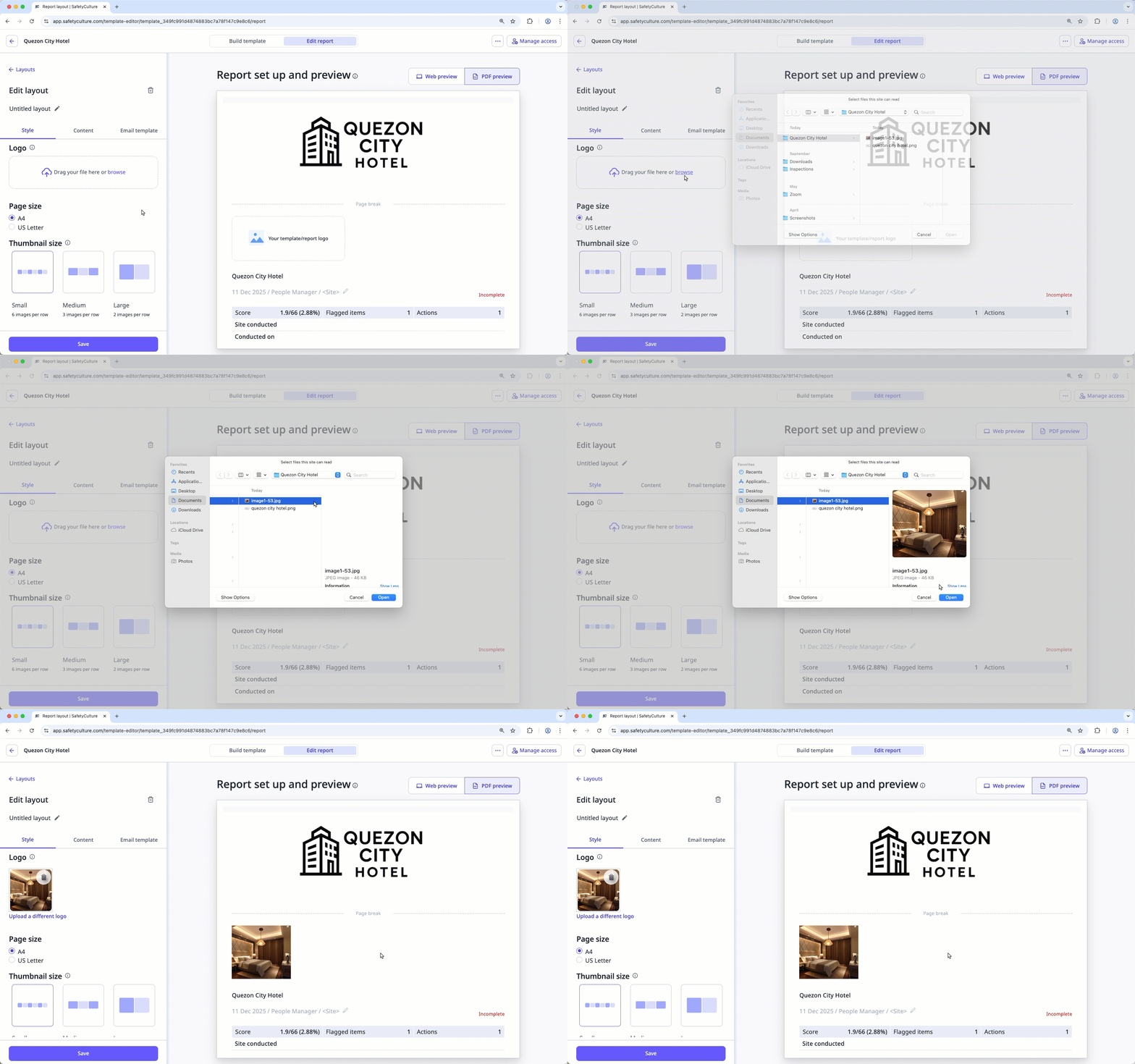
Click Save.