What can I do with file uploads and document generation in AI Assistant?
The AI Assistant allows you to upload your own files and generate downloadable documents directly from your conversation. You can work from files you've uploaded, data from your organization in SafetyCulture, like inspection results, actions, and assets, or a combination of both. This saves your team from moving data between tools, so you can go from raw information to a finished document in one place.
For example, instead of exporting inspection data and building a report manually, you can ask the AI Assistant to pull your organization's records and receive a formatted, downloadable report in chat. Or if you're reviewing a supplier's documentation, you can upload their PDF and ask the AI Assistant to summarize the key findings. This saves your team from moving data between tools, so you can go from raw information to a finished document in one place.
With the AI Assistant, you can:
Upload photos, PDFs, Word documents, Excel spreadsheets, PowerPoint files, and CSV files for the AI Assistant to analyze.
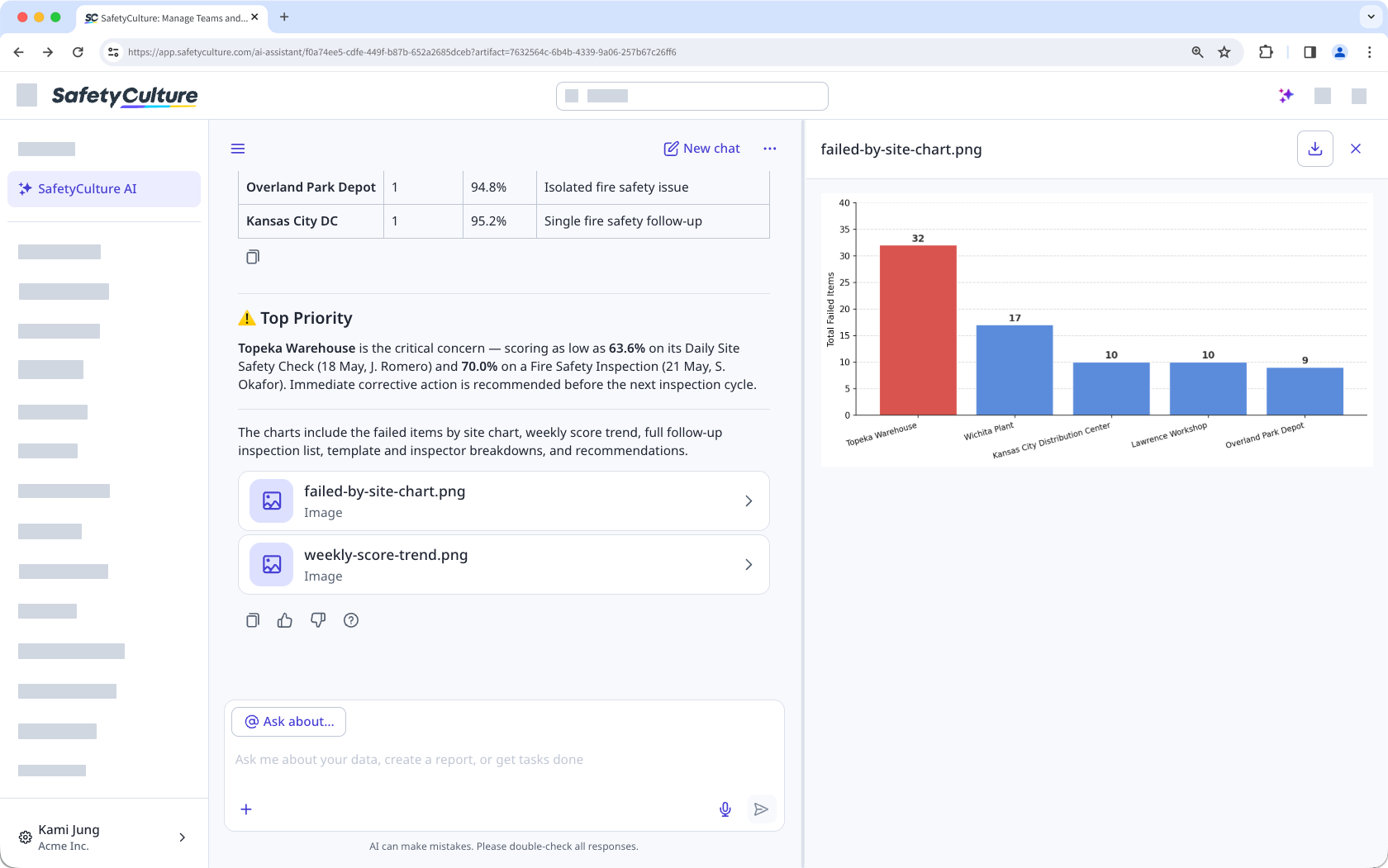
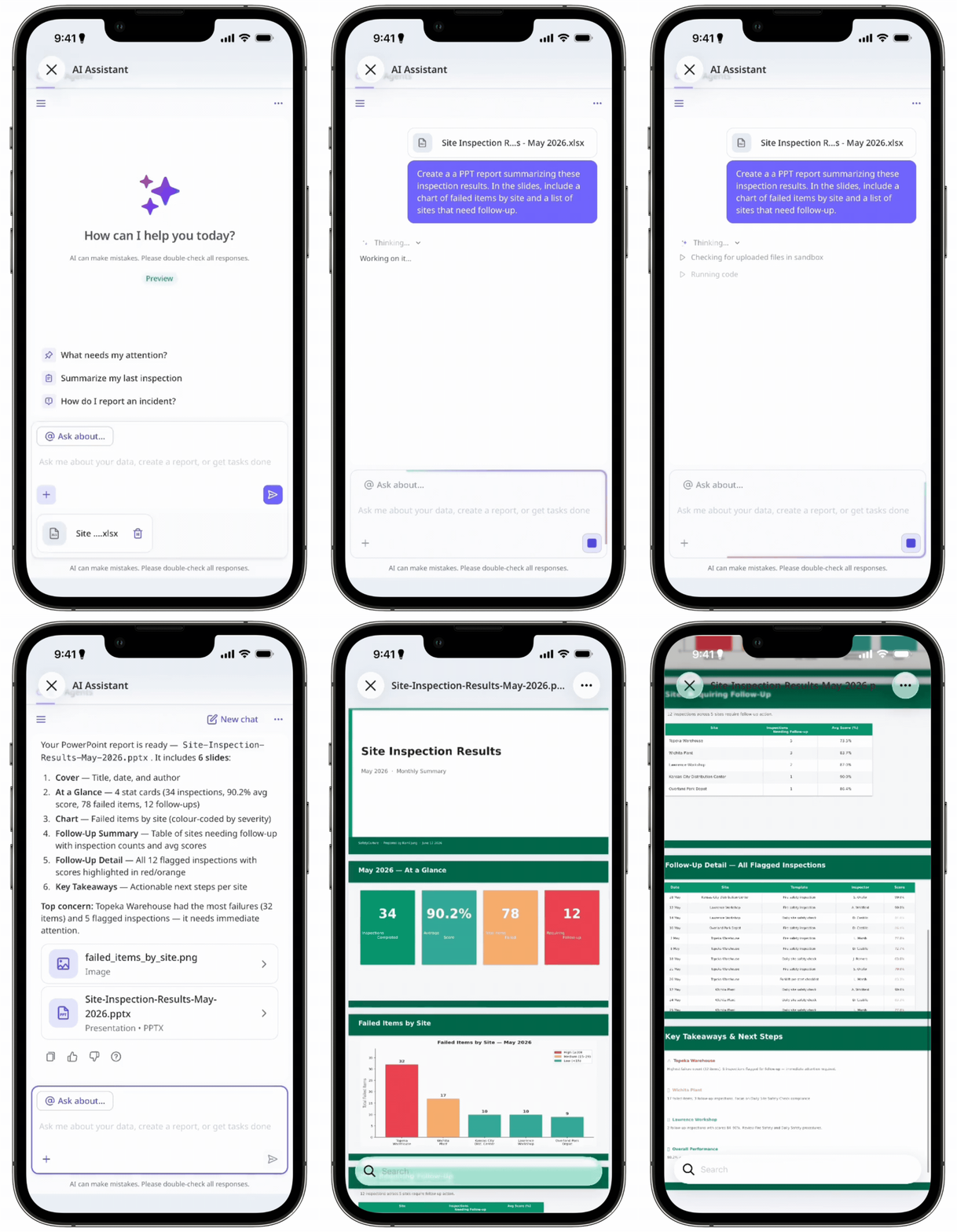
Generate downloadable files from chat, such as charts, formatted reports, and data summaries.
For example, instead of exporting inspection data and building a report manually, you can ask the AI Assistant to pull your organization's records and receive a formatted, downloadable report in chat. Additionally, instead of reading through a supplier's documentation, you can upload their PDF and ask the AI Assistant to summarize the key findings.
Ce dont vous aurez besoin
Supported file types
File upload
File type | Web app | Mobile app |
|---|---|---|
Images | GIF, JPEG (JPG), PNG, and WEBP files up to 20 MB. | Same as the web app. |
Documents | CSV, DOC, DOCX, PPTX, XLS, and XLSX files up to 20 MB. PDF files up to 20 MB and under 100 pages. | Same as the web app. |
File generation
File type | Web app | Mobile app |
|---|---|---|
Images | GIF, JPEG (JPG), PNG, and WEBP files up to 50 MB. | Same as the web app. |
Documents | CSV, DOCX, PDF, PPTX, and XLSX files up to 50 MB. | Same as the web app. |
Les fichiers générés ne peuvent être téléchargés que sur votre appareil. Vous ne pouvez pas les enregistrer directement dans d'autres fonctionnalités SafetyCulture ou dans un stockage externe comme Google Drive ou SharePoint.
Générer un document
Click Assistant AI in the sidebar or click on the right-hand side of the top bar.
Optionally, click to upload the files you want to base your document on.
Enter a prompt that describes the document you want. You can work from your uploaded files, your organization's data, or both.
Click the generated file in the conversation to review its contents.
In the preview panel, click on the upper-right of the page to save the file to your device.
Limitations
L'assistant IA ne peut pas modifier les fichiers que vous importez. Il peut les analyser et générer de nouveaux documents à partir de ceux-ci. Votre fichier original reste inchangé.
Les fichiers et les documents générés n'existent que dans leur conversation. L'Assistant IA ne peut pas accéder aux fichiers des conversations précédentes.
L'Assistant IA ne peut pas créer d'images photoréalistes ou générées par IA. Il peut générer des graphiques et des diagrammes dans le cadre de vos documents.