
- Account settings
- Profile settings
- View user profiles
View user profiles
Learn how to view your own and your team members' user profiles via the web app and the mobile app to check account details, memberships, and qualifications.View my user profile
Click your username on the lower-left corner of the page and select My Profile.
On this page, you can view your account details, memberships, and qualifications. You also have an option to view and manage your qualifications in the following tabs:
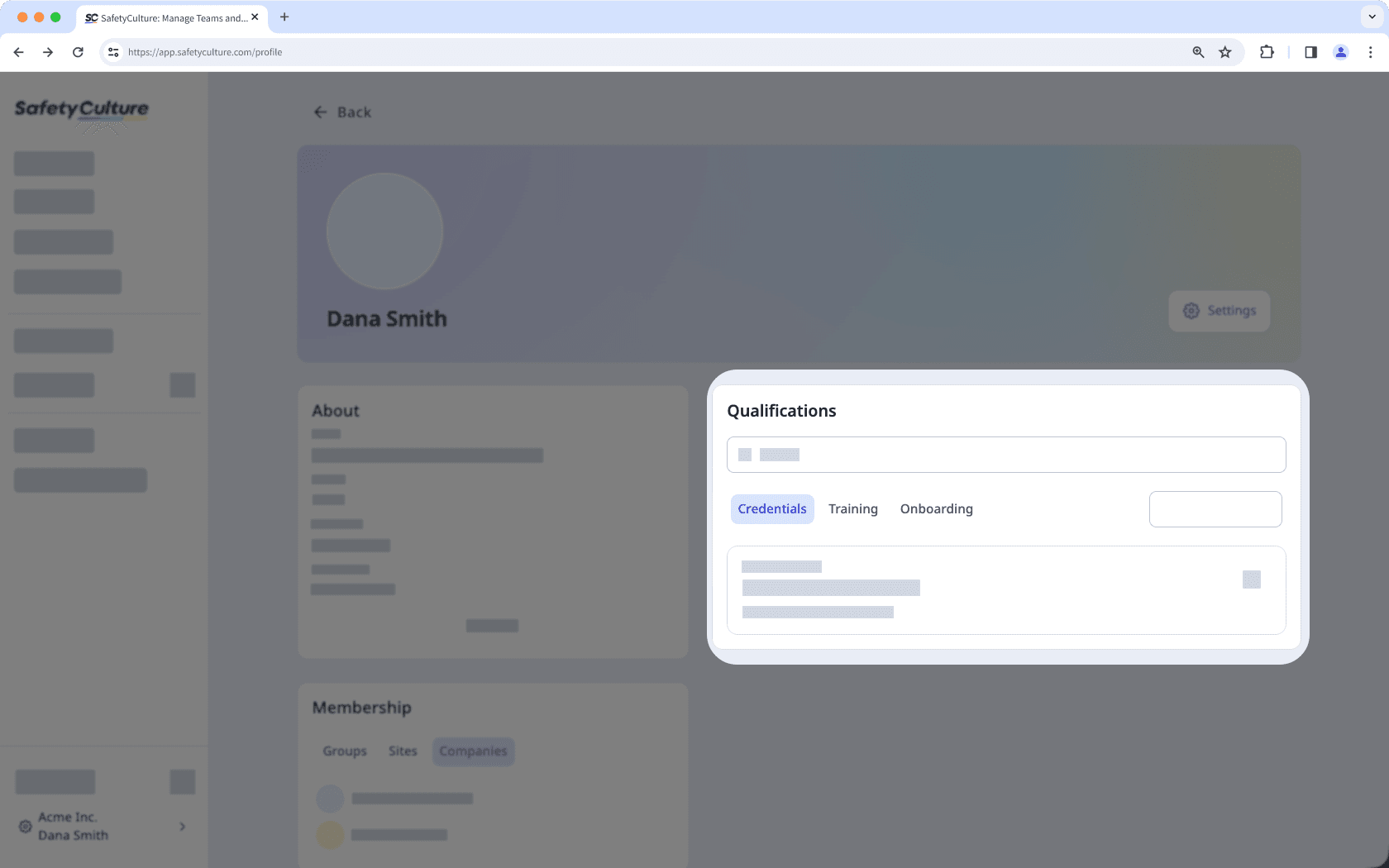
Credentials: View your credentials and upload new ones. You can also edit or delete your credentials directly from your profile settings.
Training: View your progress and certificates for training courses assigned to you. You can also access your training records from your profile settings.
Onboarding: View onboarding workflows assigned to you. You can also view your progress for each training course and credential included in the workflow.
Click
 Settings on the upper-right side of the page to view your user settings. This is where you can view your seat type, permission set, name, email, account time zone, user fields, and password.
Open the mobile app.
Tap
 Home at the bottom of your screen.
Tap your user profile icon at the upper-right corner of your screen.
In the pop-up menu, tap
 My profile.
On your profile, you can view your account details, including your name, seat type, email, timezone, and user fields.
You also have an option to view and manage your qualifications in the following tabs:
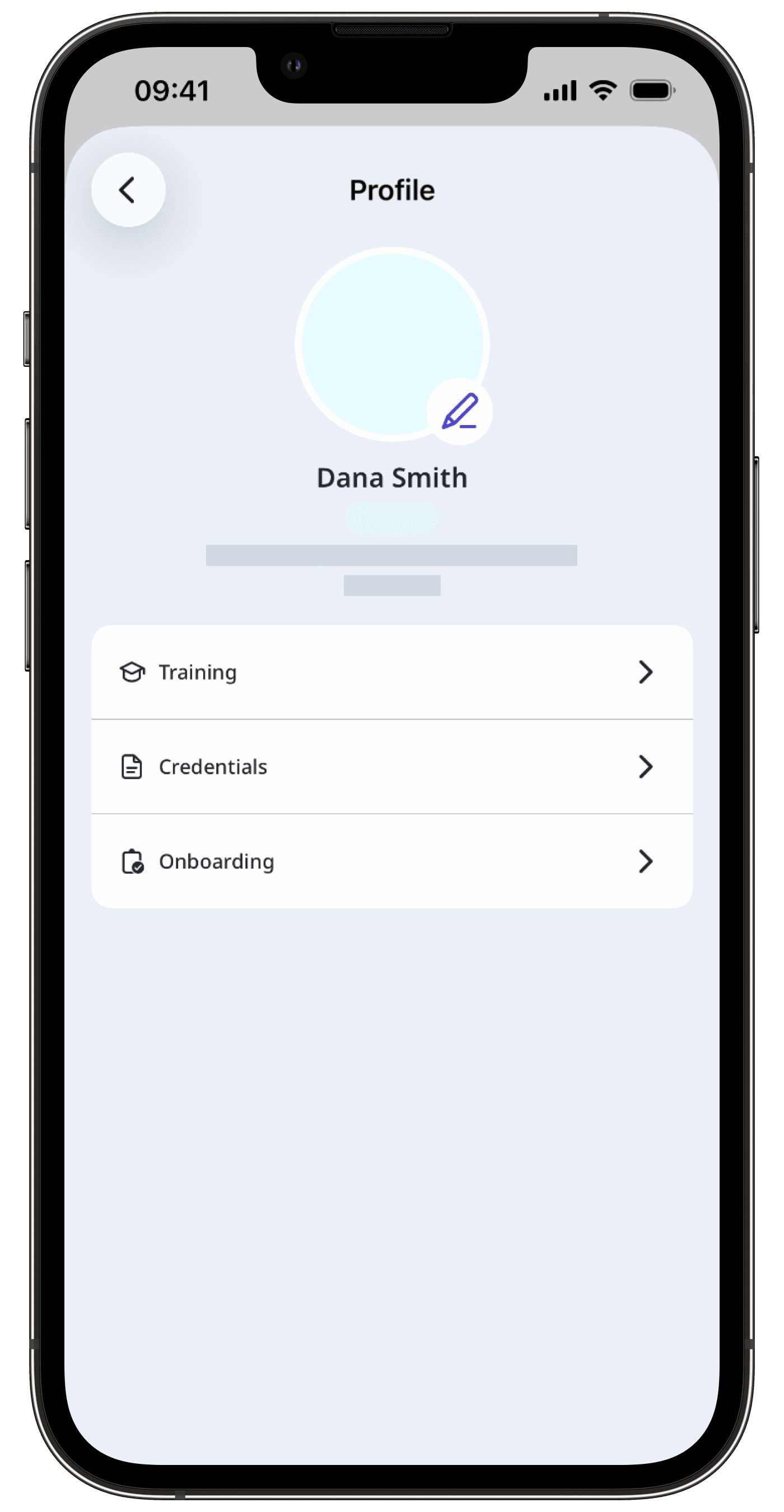
 Training: View a list of training courses assigned to you. You can also view your progress and certificates attached to each course.
 Credentials: View your credentials and upload new ones. You can also view and edit the credentials' details, including the issue date, expiration date, media, approval status, created by, and created date.
  Onboarding : View onboarding workflows assigned to you. You can also view your progress for each training course and credential included in the workflow.
If you have "Platform management: Users" permission, you can view other users' profiles in your organization.
View a user's profile
Click your organization name on the lower-left corner of the page and select Users.
Select a user.
On this page, you can view a user's account details, memberships, and qualifications.
You can also view and manage their qualifications in the following tabs:
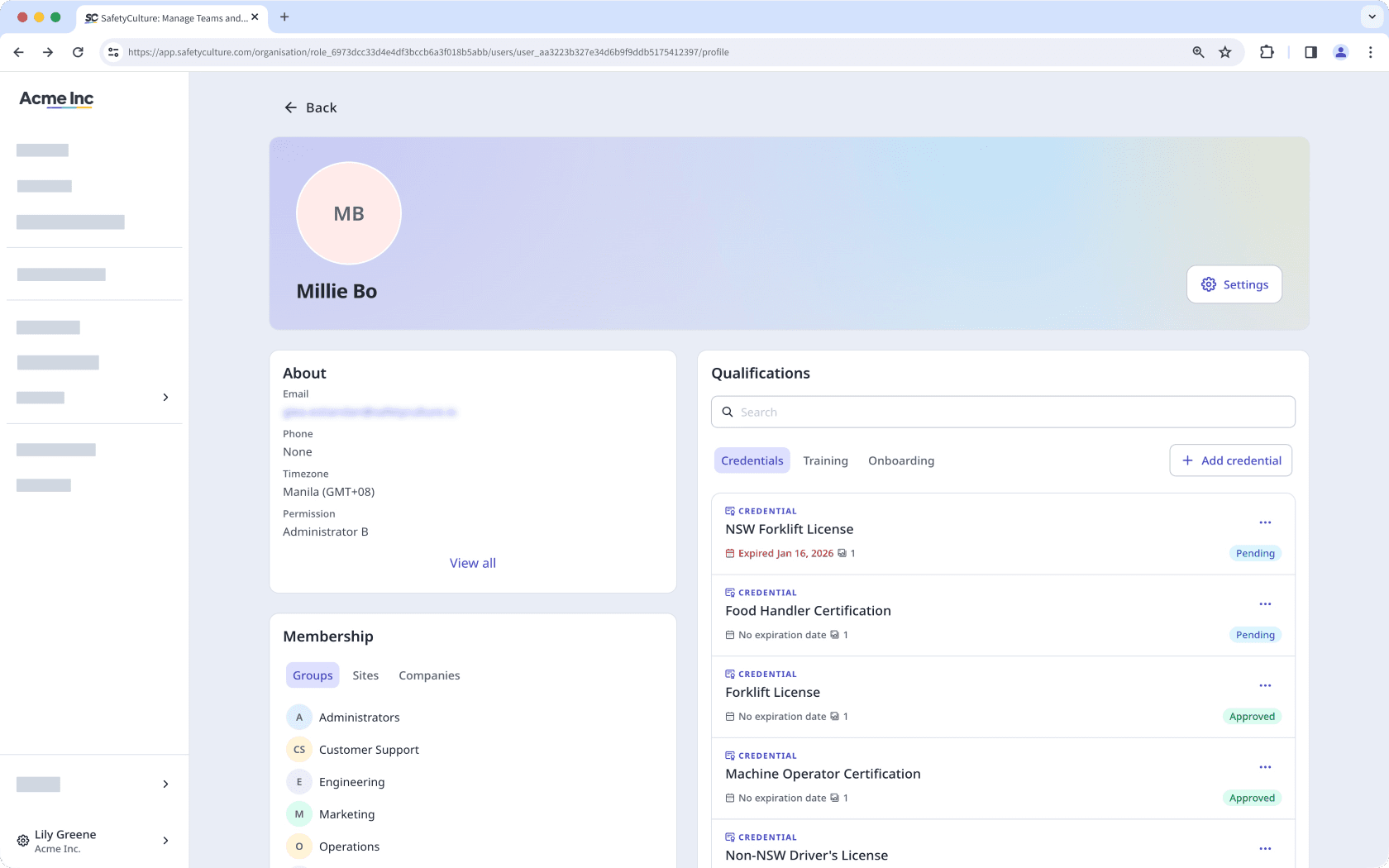
Credentials: View a user's credentials and upload new ones. You can also edit or delete their credentials directly from the profile settings.
Training: View a user's progress and certificates for training courses assigned to them. You can also access their training records from the profile settings.
Onboarding: View onboarding workflows assigned to a user. You can also view their progress for each training course and credential included in the workflow.
Click
Settings on the right-hand side of the page to view and manage the user’s profile settings. This is where you can view a user's seat type, permission set, name, email, account time zone, user fields, and password.
Open the mobile app.
Tap your user profile icon at the upper-right corner of your screen.
In the pop-up menu, tap
 People.
Select a user.
On this screen, you can view a user's account details, including their name, seat type, email, and timezone.
You can also view their qualifications in the following tabs:
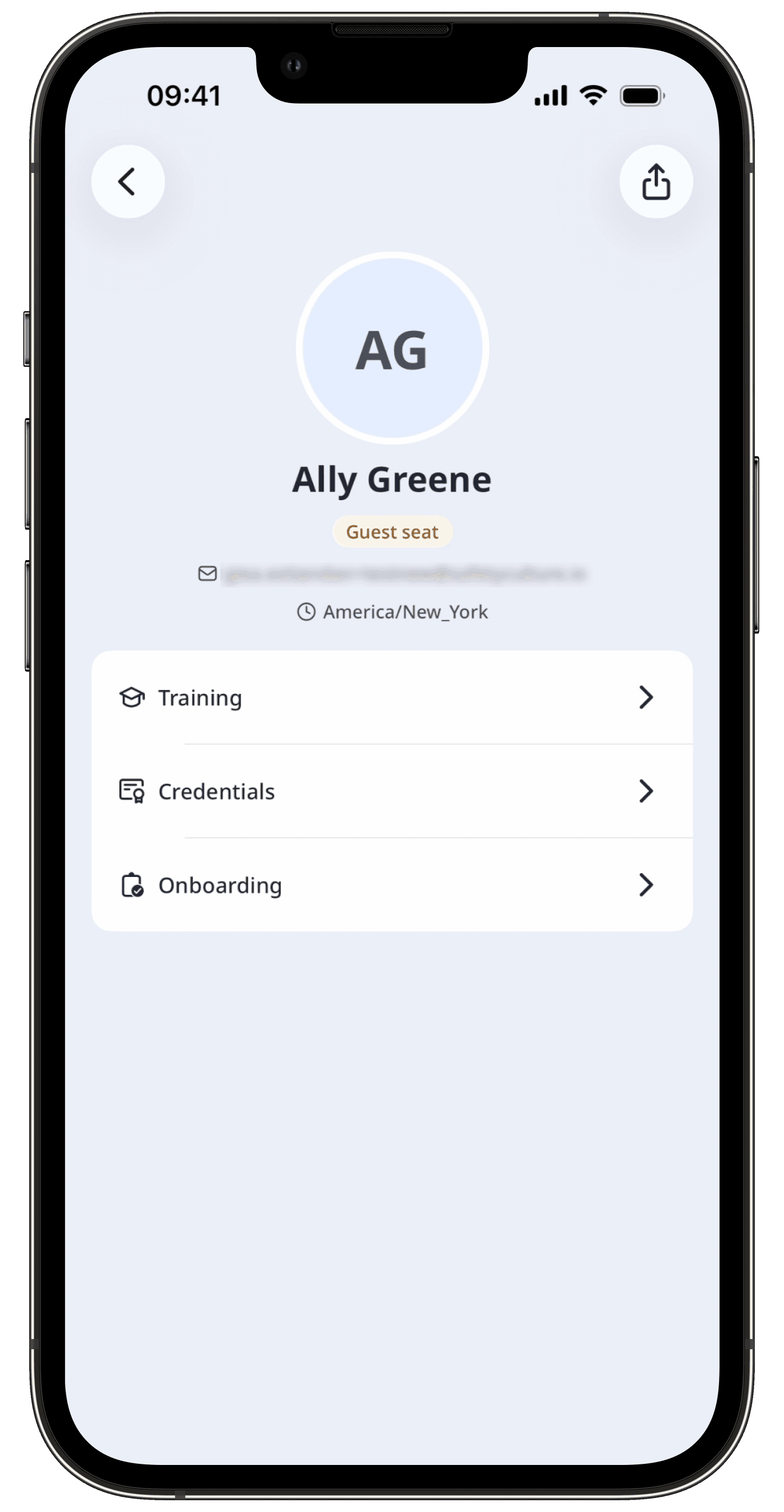
Training: View a list of training courses assigned to a user. You can also view their progress and certificates attached to each course.
Credentials: View a list of a user's credentials. You can also view their credentials' details, including the issue date, expiration date, media, approval status, created by, and created date.
Onboarding: View onboarding workflows assigned to a user. You can also view their progress for each workflow.
Your user profile is accessible even offline. This lets you view your credentials, training certificates, and onboarding workflows without an internet connection.
Frequently asked questions
If a user field is greyed out, only administrators or users with the "Platform management: Users" permission can update the field's details.
To request changes, you may reach out to an administrator or any user with the "Platform management: Users" permission.
Was this page helpful?
Thank you for letting us know.