What is the activity log?
The activity log is a continuously updated list of changes that occurred within your organization. This allows you to track the changes made by your team in SafetyCulture. This is helpful when an inspection or template goes missing, or when you want to understand how settings have been adjusted for certain features in your organization.
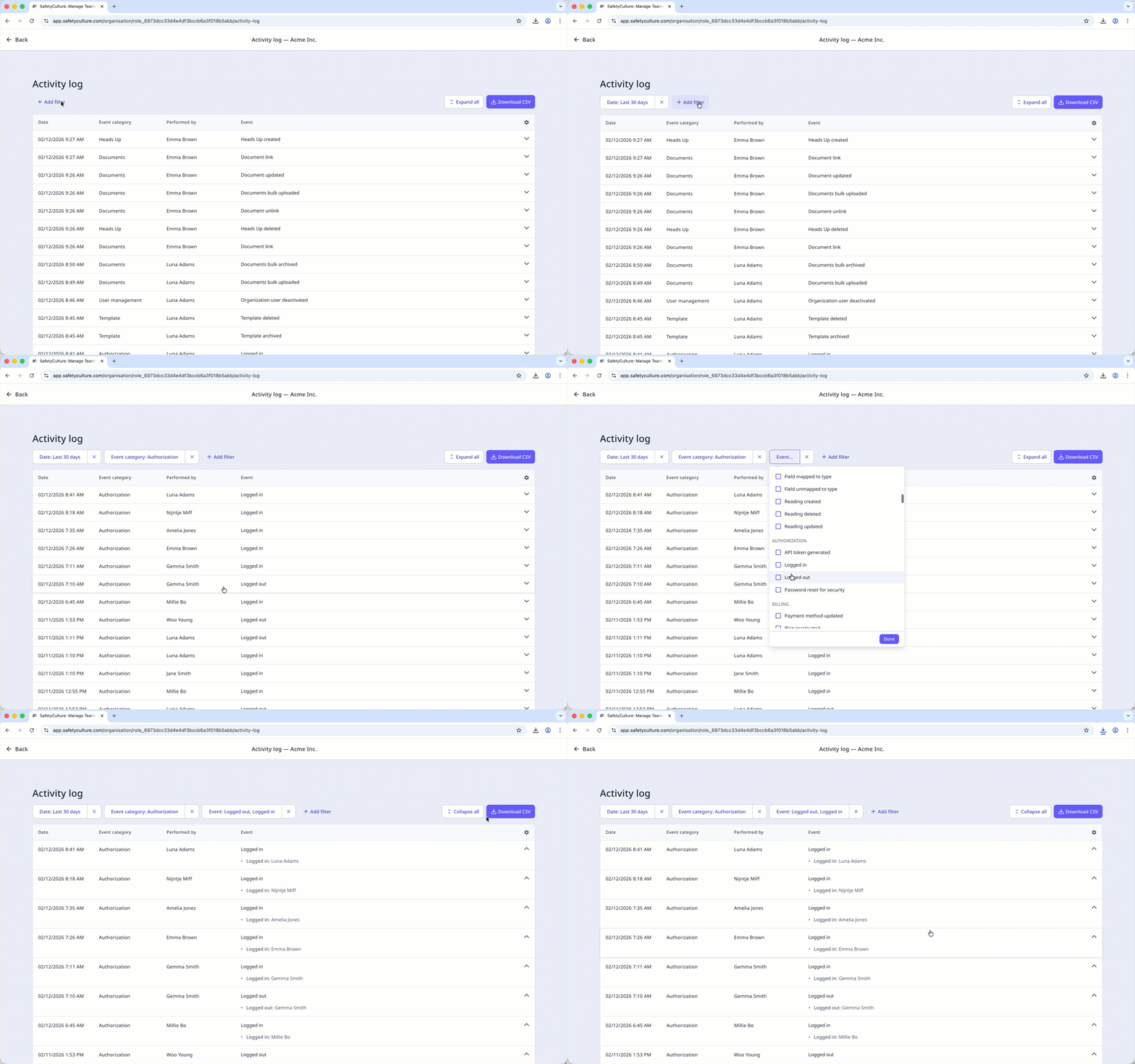
Only certain user activities are captured within the activity log. Please let us know if there are additional events you want to track.
What you'll need
You can only view events from the last 90 days. The date and time reflect your computer's time zone settings.
View and download your organization's activity log
Click your organization name on the lower-left corner of the page and select Organization settings.
Select Activity log at the top of the page.
In the "Activity log" section, click View activity log.
C lick Add filter to choose what you want to view, such as event category, event, who performed the activity and when it occurred.
Select an event to view more details, or click Expand all on the upper-right of the page to view details for every event in the list.
Click Download CSV on the upper-right of the page to download the activity log.
In the pop-up window, click Start.
CSV column headers
Column header | Description |
|---|---|
date | The date and time an event occurred. |
category | The part of the platform where an event occurred. For more details, see the "Categories" section below. |
platform | The platform where an event was performed, whether in the web app or mobile app. |
performedBy | The user who performed an event. |
event | The specific action that occurred within the category. |
metaData | The details of the specific item affected by the event. |
Event categories
The "Event category" column groups events based on the area of the platform where the activity occurred.
Category | Description |
|---|---|
Actions | The Actions category captures whether an action field, action label, action type, custom status label, recurring action schedule, or priority setting is created, updated, renamed, or deleted. It also logs if a field is mapped or unmapped to a type and if an action is deleted. |
Assets | The Assets category captures all events or activities related to an asset. This logs whether an asset, asset type, asset type field, or reading is created, updated, archived, deleted, or restored. It also logs if a field is mapped or unmapped to type. |
Authorization | The Authorization category logs whether a user logged in or logged out of the app or whether an API token was generated. |
Billing | The Billing category logs when a payment method is updated, a plan is reactivated or upgraded to Premium, or a seat is converted, or its quantity is updated. |
Companies | The Companies category captures all events or activities related to a company. This logs when a company is created, updated, deleted, bulk uploaded, or bulk deleted. It also logs when a user is added to or removed from a company, when user roles are set, and when company organization settings and requirements are updated. |
Content Library | The Content Library category captures all events or activities related to the content in the Library. This logs whether content is created, updated, deleted, imported, published, or unpublished. It also logs whether a category is updated. |
Credentials | The Credentials category captures all events or activities related to a credential. This logs whether a credential, credential type, credential version, credential setting, or credential media item is created, viewed, added, updated, or deleted. It also logs if a credential is approved, rejected, resubmitted, or renewed. |
Documents | The Documents category captures all events or activities related to a file, folder, or file tags. This logs whether a file, folder, or file tag is created, updated, renamed, archived, deleted, restored, moved, downloaded, bookmarked, unbookmarked, flagged, or unflagged. It also logs if there are changes in a file or folder permission. |
Dynamic rules | The Dynamic rules category captures all events or activities related to a dynamic rule. This logs whether dynamic rules are created, updated, or removed. |
Group management | The Group management category captures all events or activities related to a group. This logs whether users are added or removed. |
Heads Up | The Heads Up category captures all events or activities related to a Heads Up. This logs whether a Heads Up is created, updated, or deleted. |
Inspections | The Inspections category captures all events or activities related to an inspection. This logs whether an inspection is started, completed, duplicated, archived, restored, or deleted. It also logs whether an inspection report is viewed or downloaded. |
Integrations | The Integrations category captures all events or activities related to an integration. This logs whether an integration is installed or uninstalled. |
Issues | The Issues category captures all events or activities related to an issue. This logs whether an issue, issue category, or issue category field is created, updated, or deleted. It also logs if the issue category notification or issue category visibility is updated. |
Notification management | The Notification management category captures all events or activities related to organization-level notification settings. This logs whether notification channels, default notification settings, or enforcement settings are updated. |
Permissions management | The Permissions management category captures all events or activities related to a permission set. This logs whether a permission set is created, assigned, updated, or deleted. |
Schedules | The Schedules category captures all events or activities related to a schedule. This logs whether a schedule is created, updated, deleted, ended, paused, or resumed. |
Sensors | The Sensors category captures all events or activities related to sensors. This logs whether a sensor or gateway is added, updated, removed, archived, or unarchived, as well as whether a sensor location name or sensor alert configuration is updated. |
Settings | The Settings category logs whether any setting is modified. |
Sites | The Sites category captures all events or activities related to a site. This logs whether a site is created or deleted, as well as if a site name, site label, site membership, or site setting is updated. |
Templates | The Templates category captures all events or activities related to a template. This logs whether a template or template folder is created, updated, archived, restored, or deleted. |
User management | The User management category captures all events or activities related to a user in the organization. This logs whether a user is invited, added, deleted, activated, deactivated, or removed. It also logs whether user details such as user name, password, email address, seat type, and timezone are updated, as well as when user fields are created, updated, archived, restored, or deleted. |