
- Administration
- Site management
- Customize site labels
Customize site labels
Learn how to customize site labels to match your organization’s terminology via the web app, making sites easier to identify and ensuring consistent naming across the platform.Why customize site labels?
Custom site labels allow you to rename sites and levels in SafetyCulture to match your organization’s terminology, such as stores, projects, or departments. This aligns the platform with the language your teams already use, which is especially helpful for organizations operating across multiple teams or regions.
Using familiar labels reduces confusion and the risk of mislabeled items, such as inspections or actions, improving data accuracy and consistency. As a result, this can support faster onboarding, stronger adoption, and clearer reporting across the organization.
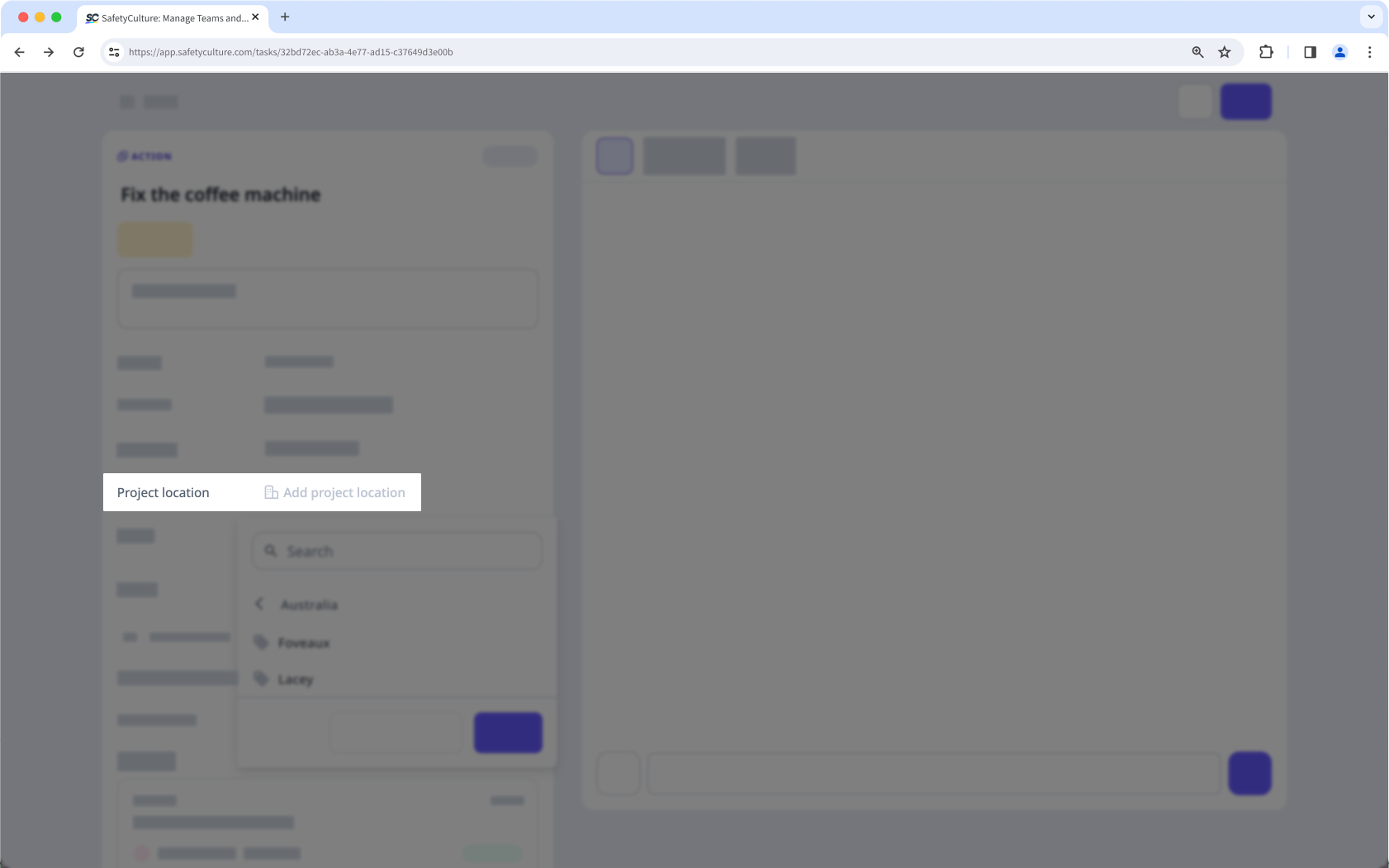
Changes to site labels will apply to all users in your organization and will appear across different SafetyCulture features such as Inspections, Schedule, Actions, and Issues.
Customize site labels
Click your organization name on the lower-left of the page and select Sites.
Click
on the upper-right of the page and select
Sites settings.
In the "Customize site labels" section, customize the label for each site level accordingly. A limit of 20 characters applies to each custom label.
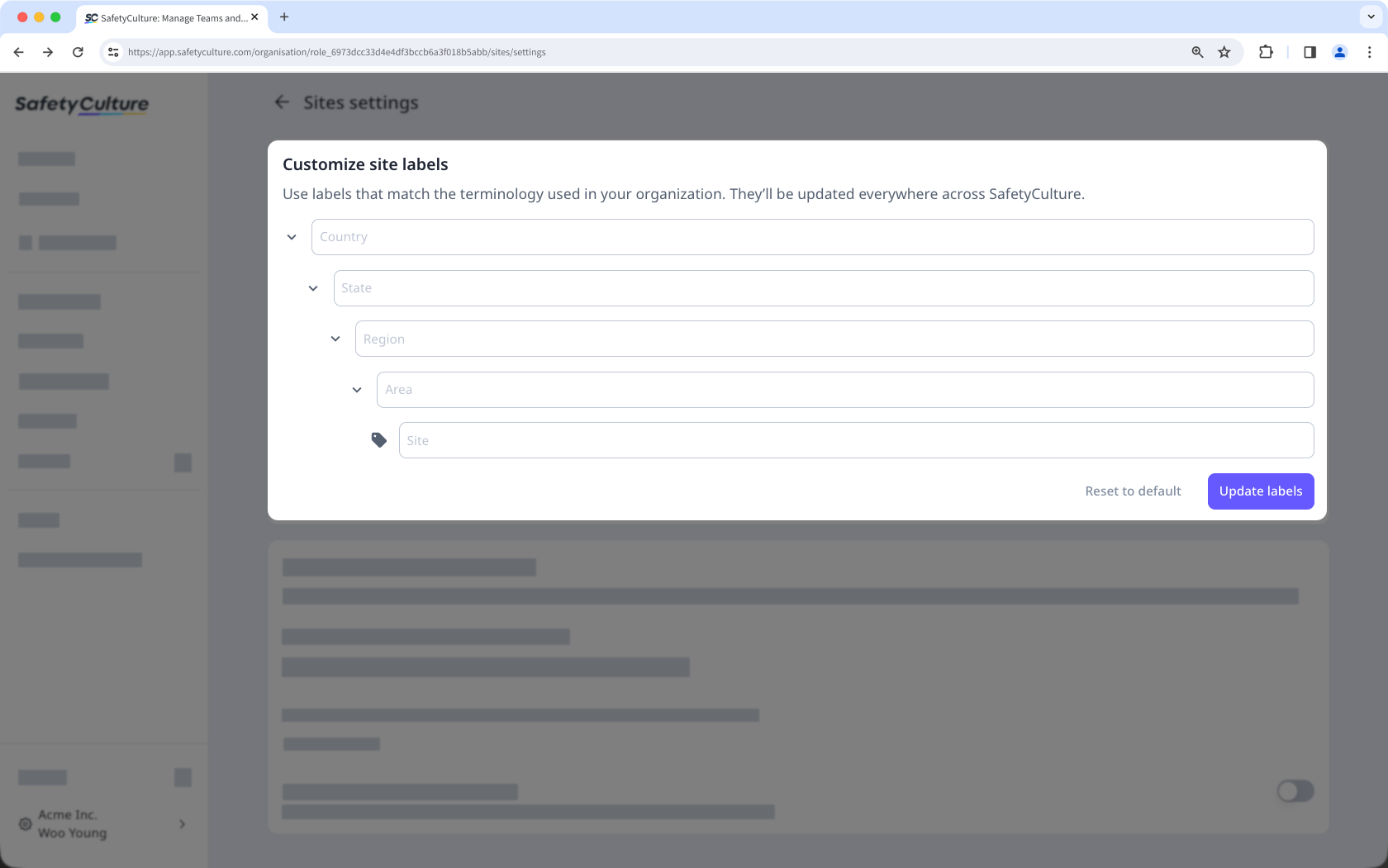
Click Update labels.
Reset to default site labels
Click your organization name on the lower-left of the page and select Sites.
Click
on the upper-right of the page and select
Sites settings.
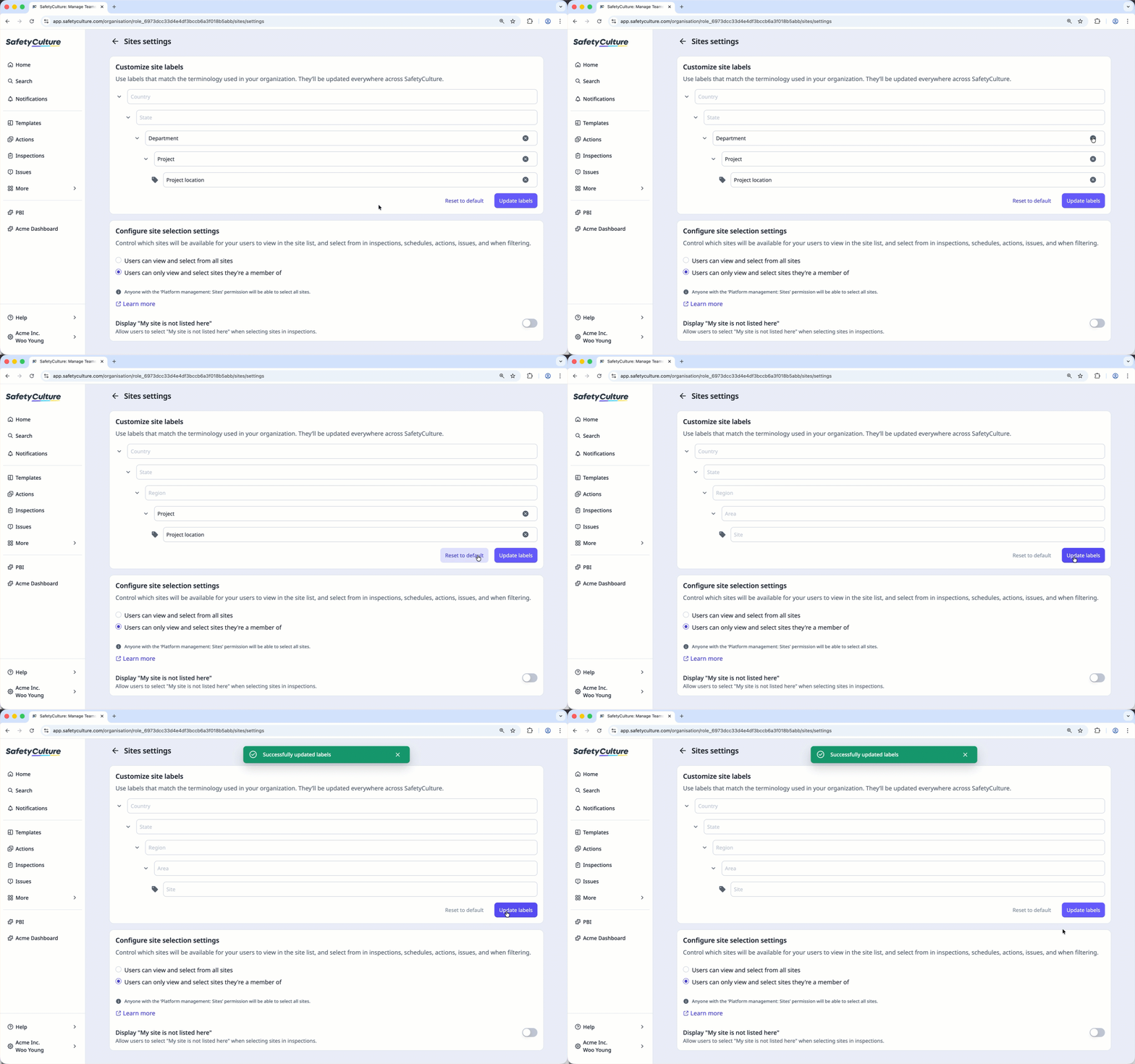
In the "Customize site labels" section, you can reset all site labels to their default values by selecting Reset to default in the lower-left of the pop-up window.
To reset a single label, click
on the label's right-hand side.
Click Update labels.
Frequently asked questions
You can currently only have five levels of custom labels. If you need more than five levels, please let us know by providing your feedback.
Updating your site labels replaces how sites and levels are presented in other areas of the platform. For example, if you customize the label from "Site" to "Project location", users in your organization will see the option to "Add project location" rather than "Add site" when creating an action.

Site labels define the terminology used for sites and levels across SafetyCulture, while site names identify individual sites or levels.
Labels control what sites or levels are called (for example, “Store” or “Project”), whereas names specify which location it is (such as “Store A” or “Project Alpha”). Changing site labels updates the language used throughout the platform without affecting existing site names or data.
“Site conducted” is simply the question label used in a template’s title page. Updating site labels doesn’t automatically rename questions in existing templates. Because of this, inspections conducted from those templates can still display “Site conducted” until the template is updated.
To change what appears in inspections, edit the site question in the template’s title page and publish the template. The updated question label will only apply to inspections conducted after the template is published.
Was this page helpful?
Thank you for letting us know.

